


75% of access requests can be automated when approvals, provisioning, and evidence live in the same place. Establishing approval workflows for access requests isn't really about getting a manager to click yes faster, it's about making sure the approval actually turns into the right access, the right expiry, and the right audit record.
I've seen IT teams make this way too hard. They already have Jira Service Management. They already have Slack. They already have Okta, Entra ID, or Google Workspace. Then they buy or build another approval layer, and suddenly every request has to travel through four systems before anything happens.
And then audit season hits. Someone is pulling Slack screenshots. Someone else is exporting identity provider group membership. The Jira ticket says "approved" but doesn't prove what changed. If you want to see how Jira-native access governance closes that loop, Learn more about Multiplier.
Key Takeaways:
- Establishing approval workflows for access should start with the access change, not the form.
- Jira should be the system of record for requests, approvals, provisioning status, and audit evidence.
- If approval doesn't trigger provisioning, IT still owns the most expensive manual step.
- Low-risk requests should be auto-approved or lightly approved, while admin roles need tighter controls.
- Time-bound access beats permanent grants for elevated permissions.
- Audit evidence should be created during the workflow, not rebuilt later in spreadsheets.
Why Access Approvals Break Inside Growing Teams
Access approvals break when the approval decision is disconnected from provisioning and evidence. Jira captures the request, Slack captures the conversation, the identity provider captures the group change, and spreadsheets capture whatever the auditor asks for later. That split creates delay, standing access, and cleanup work that never really ends.

The Approval Was Never the Hard Part
The approval click is easy. The work around it is what breaks. Someone has to know who owns the app, what role the requester needs, which group maps to that role, whether access should expire, and where the proof should live after the change happens. Miss one of those pieces and the workflow looks approved but isn't actually governed.

A familiar scene: it's Tuesday morning after onboarding. The IT queue is full of "need access to Figma" and "can I get GitLab?" requests. Some have managers tagged in Slack, some have no role selected, and some are urgent because the new hire is already blocked. The team isn't lazy. They're stuck in a process where approval is a checkpoint, not an operating system.
Separate Portals Create a Hidden Tax
The separate IGA portal argument sounds reasonable. Dedicated tool. Dedicated controls. Dedicated workflow. Fair enough, there are companies with deep identity teams where that model works, especially if they have complex policy requirements and staff to manage the system full time. The issue is that most mid-market IT teams don't live inside that portal all day.
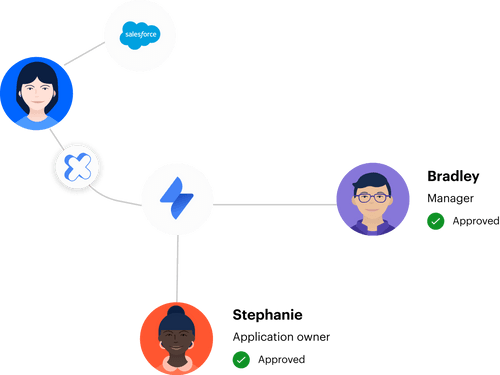
They live in Jira and Slack. Employees also live there. So when the governance system sits somewhere else, the team pays a hidden tax every time a request moves from one tool to another. The Atlassian guide to Jira Service Management makes the case for centralizing service work because the service desk becomes the place where intake, ownership, and status are visible. Access governance should follow the same logic. If the work starts in Jira, the evidence should stay in Jira.
Audit Readiness Shouldn't Be a Quarterly Rebuild
Audits go sideways when evidence gets created after the fact. Someone approved the request in Slack. Someone made the change in Okta. Someone updated the Jira issue, maybe. Then three months later, the auditor asks who approved access, what changed, and whether the user still needs it. Now IT becomes a detective agency.
Honestly, I've never understood why teams accept this as normal. NIST's least privilege control guidance in AC-6 is pretty clear about limiting access to what users need. But policy without workflow enforcement becomes theater. You don't need another spreadsheet. You need the approval workflow to create the audit trail while the work happens.
How to Build Approval Workflows That Actually Run
Approval workflows run well when they define who approves, what access gets granted, when access ends, and where the evidence is stored. The practical sequence is simple: classify request risk, map roles to identity groups, route approvals in Jira or Slack, and make provisioning update the ticket automatically.
Start by Sorting Requests Into Risk Buckets
A good approval workflow starts with risk, not org charts. If every app request goes through the same approval path, low-risk access gets stuck and high-risk access gets under-reviewed. Bad trade. You want the workflow to treat a request for a design tool viewer role differently than a production admin role.
A simple diagnostic works well before establishing approval workflows for access requests. Pull the last 100 access tickets and group them into three buckets: routine business access, sensitive app access, and privileged or temporary access. If more than 60% are routine requests, you have an automation opportunity. If more than 20% are privileged requests with no expiry, you have a standing privilege problem.
The rule I like is pretty direct:
- Routine apps should use manager approval or auto-approval.
- Sensitive apps should use app owner approval.
- Admin or production access should require time-bound access.
- Unknown apps should go to IT for triage before provisioning.
You don't need a giant policy document to start. You need enough structure so the same request gets the same treatment every time. That's where most teams go wrong. They build approvals around whoever shouted the loudest last quarter.
Map Roles Before You Map Approvers
Role design matters more than people think. A request for "Salesforce access" is basically useless. Viewer, editor, admin, billing admin, API access, production access, sandbox access, these are completely different requests. If you don't define roles up front, the approver has to guess what the requester means.
At VideoAmp, the breaking point came when new hires started on Monday and Tuesday turned into a pile of access tickets without enough detail. They scaled from 100 to 500 employees, and the problem wasn't that employees were asking for too much. The problem was intake had no structure. Once they created a self-service app catalog with sanctioned apps and roles, the request became easier to approve because the shape of the request was already clear.
Before building approval workflows, document the top 20 apps by request volume. For each app, define the roles people can request and map each role to the identity provider group that actually grants access. If a role can't be mapped to a group, flag it as manual. Don't pretend it's automated. That one distinction saves a lot of confusion later.
Put Approval Where the Approver Already Works
Approvals die when they ask busy people to change habits. A manager who lives in Slack will miss a separate portal notification. An app owner buried in email won't treat a generic access request as urgent. The workflow has to meet them where they already respond, while still writing the decision back to the system of record.
This is why Jira plus Slack is such a strong pattern for establishing approval workflows for access. Jira owns the request, SLA, workflow status, and evidence. Slack gets the decision in front of the person who needs to act. The approver doesn't need to understand the whole governance stack. They need to know who is asking, what role they want, why they need it, and what happens if they approve.
A practical approval card should answer five things:
- Who is requesting access?
- Which app and role are they asking for?
- Is the request permanent or time-bound?
- Who is the correct approver?
- What group or entitlement changes after approval?
If those five answers aren't visible, the approver is making a vibes-based decision. And I get why that happens. Teams want to keep forms short. The catch is that short forms often create long back-and-forth threads.
Make Provisioning the Test of Workflow Quality
The real test isn't whether the approval happened. The real test is whether the right access changed without IT copy-pasting group assignments. If approval ends with a human logging into Okta or Entra ID to add a user to a group, then the workflow is only half built.
At Luno, hundreds of routine access requests were coming through Slack, email, and Jira. IT had to chase managers, assign Okta groups manually, and keep enough records for auditors. After moving the process into Jira Service Management with automated provisioning, they reduced access request workload by 80%. That's the part people miss. The win wasn't just faster approvals. The win was removing the manual step after approval.
Use a simple threshold. If an app gets more than 10 requests per month and has group-based access in your identity provider, automate provisioning for it. Below that threshold, manual provisioning may be fine for a while. Above it, the coordination cost compounds. The request volume doesn't look scary one ticket at a time, but the queue tells the truth.
Add Expiry to Anything You'd Be Nervous Explaining
Standing access is usually created by convenience. Someone needed elevated access for a support incident. Someone needed temporary admin rights during a migration. Everyone agreed it was reasonable. Then nobody removed it because the request was closed and the reminder lived in someone's head.
This is where time-bound access changes the whole motion. Instead of asking, "Should this person have access?" ask, "How long should this person have access?" That one question forces a better decision. It also gives security a way to support urgent work without handing out permanent privilege.
My rule is simple. If you'd be nervous explaining the access in an audit, make it temporary. Production systems, admin roles, finance tools, sensitive data, and broad export rights should all have an expiry option. Maybe it's 1 hour. Maybe it's 24 hours. The exact duration matters less than the default assumption: elevated access should end unless someone renews it.
Build Evidence Into the Ticket From Day One
Audit evidence needs to be boring. Not heroic. Not a three-week scramble. Just boring. The ticket should show who requested access, who approved it, what changed in the identity provider, when it changed, and whether it expired or was revoked later.
Synthesia is a good example of what happens when access workflows become part of normal IT operations. They grew from 100 to over 400 employees in two years, and a four-person IT Ops team supported 420+ employees while automating 75% of access requests. They processed 3,800+ access requests in a year. Those numbers work because the request, approval, and provisioning flow aren't separate jobs.
If you're establishing approval workflows for audit-heavy environments, inspect 25 closed tickets at random. Each ticket should prove the full chain without leaving Jira. If you need Slack search, screenshots, CSV exports, and tribal memory to explain what happened, the workflow isn't audit-ready. It's just ticketed.
For teams already running on Jira and Slack, the fastest path is usually to stop rebuilding the process around a separate tool. See how Multiplier works if you want the approval, provisioning, and ticket evidence to stay in one motion.
How Multiplier Automates Access Approvals
Multiplier automates access approvals by embedding app requests, approval routing, provisioning, and audit evidence inside Jira Service Management. Employees request access in JSM or Slack, approvers act in JSM or Slack, and approved requests trigger identity provider group changes through Okta, Entra ID, or Google Workspace.
Jira-Native Requests With Group-Based Provisioning
Multiplier starts with the Application Catalog in Jira Service Management. Employees browse approved apps, pick a role like Viewer or Admin, and submit the request through JSM or Slack. Behind the scenes, each role maps to one or more identity provider groups. When the Jira issue reaches the configured approved status, Multiplier calls the identity provider API to add the user to the mapped group.

That matters because the Jira issue becomes more than a request record. It becomes the approval record and the provisioning record. Multiplier writes success or failure comments back to the issue, so IT isn't taking screenshots or updating a separate spreadsheet later. For SSO apps where access is controlled by identity provider groups, the approval can turn into the actual access change without someone manually opening Okta or Entra ID.
Approvals, Expiry, and Reviews in the Same System
Multiplier's approval workflows route decisions to managers, app owners, or specific users through Jira Service Management and Slack. Low-risk apps can move quickly, while sensitive roles can require explicit approval. For temporary access, Time-Based Access lets requesters choose a duration like 1, 6, or 24 hours, then removes the user from the mapped identity provider group when the window expires.
Access reviews also stay in JSM. Reviewers see user attributes, groups, last login, and recommendations, then mark Keep or Revoke. Revocations remove users from the relevant identity provider groups and create Jira evidence. For teams trying to automate 75%+ of access requests without adding another portal, that combination is the point. The request starts in Jira, the decision happens in Jira or Slack, and the evidence stays tied to the work.
If you're trying to get out of manual group assignments and audit cleanup, Get started with Multiplier.
Make Approval Evidence Part of the Work
Establishing approval workflows for access requests only works when approvals trigger the right downstream action. Otherwise, you're just moving the bottleneck. The better model is boring and repeatable: Jira captures the request, Slack speeds the decision, the identity provider makes the change, and the ticket proves what happened.
The old way made IT choose between speed and control. I don't think that tradeoff holds anymore. If your team already runs service work through Jira, access governance should live there too. Not because Jira is magic, but because the work is already there. The audit trail should be a byproduct of doing the work right the first time.
Frequently Asked Questions
How do I set up automated provisioning with Multiplier?
To set up automated provisioning with Multiplier, follow these steps: 1) Ensure your identity provider (like Okta or Google Workspace) is integrated with Multiplier. 2) Use the Application Catalog in Jira Service Management to list approved applications and their corresponding roles. 3) When an access request is approved, Multiplier will automatically call your identity provider's API to provision access based on the mapped groups. That removes the manual provisioning step entirely.
Can I customize access request roles in Multiplier?
Yes, you can customize access request roles in Multiplier. Start by documenting the top applications your team uses and the specific roles associated with each one (like Viewer, Editor, or Admin). Then, in the Application Catalog within Jira Service Management, you can map these roles to the corresponding identity provider groups. When employees request access, they pick the right role from a known list — no guessing, no back-and-forth.
What if I need to revoke access after an approval?
If you need to revoke access after an approval, you can do this easily with Multiplier. First, access the Jira ticket associated with the request. Then, use the Access Reviews feature to mark the user for revocation. Multiplier will automatically remove the user from the relevant identity provider groups and create a Jira ticket documenting the change. The Jira ticket becomes the audit record for the revocation, so nothing needs to be rebuilt later.
How do I implement time-based access with Multiplier?
To implement time-based access using Multiplier, you need to configure it during the access request process. When employees submit a request through the Application Catalog, they can select a duration for their access (like 1, 6, or 24 hours). After approval, Multiplier will provision the access and automatically set a timer to revoke it once the duration expires. Elevated access ends automatically — no reminder needed, no standing privilege left behind.
When should I use automated access reviews?
You should consider using automated access reviews when your organization has a significant number of users and applications that require regular oversight. Multiplier's Access Reviews feature allows you to create campaigns that automatically notify reviewers about user access status. This can streamline your auditing process and ensure that access is appropriate based on current user roles and activity. Regular reviews help maintain compliance and security by ensuring that only necessary access is retained.


