


At 9:12 a.m., a Jira ticket gets approved for a routine group assignment. By lunch, the requester still has no access because automating low-risk standard change stopped at the approval status.
Someone still needs to open the identity provider, find the user, add the right group, update Jira, and hope they didn't miss a step. That's not automation. It's a digital checklist attached to manual work.
Key Takeaways:
- Define standard changes by repeatability, not how easy they look.
- Connect Jira approval directly to identity provider execution.
- Keep risky roles out of low-risk automation paths.
- Add expiry and revocation when access shouldn't be permanent.
- Write execution evidence back to the original Jira issue.
Why Automating Low-Risk Standard Change Stalls in Jira
Automating low-risk standard change usually stalls because approval and execution are treated as separate jobs. Jira records the decision, while an IT agent performs the actual change somewhere else. The ticket moves forward, but the work still depends on a person copying data between systems.

Approval Is Only Half the Change
An approved Jira ticket is a signed work order, not a completed change. If a technician still has to carry that work order to another system and perform every step manually, the process hasn't been automated. You just made the request easier to track. Useful, sure, but incomplete.

At 10:05, an IT agent opens an approved request for a sanctioned application. They copy the employee's email, open Okta, search for the mapped group, add the user, then jump back to Jira to leave a comment. Five systems aren't involved here. Two are. And two is enough to create delays, missed updates, and the occasional typo that grants the wrong access.
If the Jira-to-IDP handoff is where your queue stalls, Multiplier's Jira-native access workflow shows what it looks like when approval and execution stay attached.
Routine Work Creates a Surprising Amount of Toil
A nearly 1,200-person fintech had hundreds of routine access requests arriving through Slack, email, and Jira. Each one took somewhere between 5 and 30 minutes because IT had to chase approval and manually assign the correct Okta group. None of the individual changes were hard. The volume made them expensive.
After moving requests, approvals, and provisioning into one Jira-based flow, the company cut IT workload for access requests by 80%. I think that distinction matters. They didn't save time by writing a better policy or asking employees to file cleaner tickets. They removed the repeated execution work after the decision was already made.
The same pattern shows up in smaller shops. Ten minutes feels harmless when you look at one request. Across onboarding, application access, role changes, and offboarding, those minutes eat entire workdays.
Policy Without Execution Leaves Access Behind
Security policies often describe least privilege very well. Access should be approved, limited to the right role, reviewed regularly, and removed when no longer needed. Fair enough. The policy isn't the weak point.
Execution is where it breaks. A manager approves temporary access, but nobody sets an expiry. An offboarding ticket closes, but one group membership stays behind. A reviewer marks Revoke, then the actual removal sits in another queue for a week. Automation-first least privilege works better because the control executes as part of the workflow, not as a follow-up task somebody forgets.
A separate identity governance suite can make sense for a large company with complex entitlement models across many systems. That's a real use case. But sending a standard Jira request into another portal, then back into Jira for evidence, adds overhead to changes that were already understood and approved. The next question is how to define a standard change tightly enough that the automation never needs to guess.
How to Automate Standard Changes Without Losing Control
Automating standard changes safely comes down to six things: clear qualification, fixed inputs, risk-based approvals, authoritative execution, automatic rollback, and attached evidence. Each part removes a spot where people currently interpret policy by hand. Miss one, and the workflow may be fast without being reliable.
Review the Last 20 Changes Before Automating Anything
Pull the last 20 examples of a change before you call it standard. You're looking for repetition, not volume alone. If the inputs, approval path, target group, and final action keep shifting, the process isn't ready. It still requires judgment.
A good candidate should produce the same action from the same inputs at least 10 times in a row without an exception. I prefer a boring automation target. Boring means the path is understood, the outcome is predictable, and failure can be reversed without a meeting.
A change is likely ready when:
- The requested role maps to a known identity provider group.
- The approval owner is already defined.
- The change can be reversed with one clear action.
- The required evidence is known before execution.
- No technician needs to interpret free-form notes.
If any one of those stays unclear, fix the process first. Automating ambiguity only makes the mistake happen faster.
Turn Request Details Into Fixed Inputs
A new hire asking for “design tools” hasn't given you an automation-ready request. IT still has to decide which application, what role, which group, and whether the access should expire. The ticket exists, but the decision is buried inside a vague sentence.
Structured inputs remove that guesswork. The requester picks from sanctioned applications and approved roles. Each role maps to a specific group, approval route, and access rule. Once those fields are fixed, Jira can drive the same change every time.
For each automated standard change, define:
- Request type: The exact change being requested.
- Role: Viewer, Editor, Admin, or another approved level.
- Target group: The identity provider group that grants access.
- Approver: Manager, application owner, or a named user.
- Duration: Permanent or time-bound access.
- Reversal action: The group removal or account change used to undo it.
A 500-person advertising company used this approach to build a catalog of 20 sanctioned applications. Over six months, employees submitted more than 500 requests through the catalog, saving IT over 70 hours. Better intake mattered because it made the work deterministic. Same input, same output, every time.
Match Approval Depth to Actual Risk
Viewer access to a sanctioned design app and administrator access to production aren't the same change. Run both through an identical approval path and you get one of two problems. Low-risk work moves too slowly, or high-risk work gets too little scrutiny.
Start with what the access can actually do. A routine role with a known owner and easy rollback may need one approval, or meet a defined auto-approval rule. Access to production systems, financial data, or privileged administration should stay on an explicit approval path, even when the technical group assignment takes seconds.
The routing can stay simple:
- Known low-risk role: Use a pre-defined approval rule.
- Sensitive role: Route to the application owner or manager.
- Privileged role: Require explicit review and a set duration.
- Unmapped request: Send it to manual triage instead of guessing.
Some security teams will want human approval for every change. I get the logic. Human review feels safer. But repetitive approval adds little real control when the reviewer checks the same fields and makes the same decision three hundred times. The scrutiny that matters gets diluted across the requests that never needed it.
The same risk-to-workflow mapping shows up in the mapped access request flow, where Jira status, approver choice, and execution stay connected.
Execute Through the Identity Provider
The identity provider should execute the access change because it owns the group membership. Jira should trigger and record the work, not become a second directory. Keep those roles clear and you stop two systems from claiming different versions of the user's access.
Once the Jira request hits the approved status, the workflow can call Okta, Entra ID, or Google Workspace to add the user to the mapped group. For SSO applications, that group can pass the entitlement downstream through the app's existing setup. When execution fails, the ticket should stay open and record the error, not close as if the work happened.
An approval without execution feedback is hard to trust. IT sees an approved issue and assumes the user has access. The requester sees no change and opens another ticket. Now one standard change has become duplicate work, and both people think the other one dropped the ball.
Authoritative execution fixes that gap. Jira owns the service record, while the identity provider owns the identity change. Each system does the job it's already good at.
Make Expiry Part of the Original Grant
What makes temporary access fail so often? Expiry gets treated as a future cleanup task instead of part of the original change. Someone grants the group membership now, adds a reminder for later, then gets pulled into a P1 and forgets the reminder ever existed.
Time-bound access should carry the removal action before the grant occurs. If an engineer needs elevated access for six hours, the request carries that duration into the workflow. Approval starts the timer, and expiry triggers removal from the same mapped identity provider group.
Build the flow in this order:
- Validate the requested role and duration.
- Collect the required approval.
- Add the mapped group membership.
- Start the expiry timer.
- Remove the membership when time runs out.
- Record both actions in the Jira issue.
Automatic removal only works when access is controlled through an identity provider group. A manually granted, non-SSO entitlement can't be reliably removed by a group-based workflow. That's a real limitation, and it should keep that kind of request on a manual path where a person owns the cleanup.
Treat Evidence as an Output of the Workflow
Audit evidence shouldn't require someone to reconstruct what happened three months later. The request, approval, identity change, expiry, and revocation already happened. Each event should write back to the Jira issue as part of normal execution, not get assembled the night before an audit.
In my view, evidence quality is a workflow design problem, not a documentation problem. If approval sits in Slack, execution lives in the identity provider, and the final note lands in Jira, somebody has to reconcile all three. That person becomes the audit integration. And they're doing it from memory and screenshots.
A complete standard change record should show:
- Who requested access and which role they selected.
- Who approved or denied the request.
- Which identity provider group changed.
- Whether execution succeeded or failed.
- When temporary access expired and was removed.
A screenshot proves what someone saw at one moment. A linked Jira record shows the request, decision, action, and reversal as one chain. Once those six decisions are explicit, the only job left is execution inside the system your team already uses.
How Multiplier Turns Jira Approval Into Execution
Multiplier connects Jira Service Management approval workflows to identity provider group changes, keeping the request and execution evidence on the same issue. Approved roles map to groups in Okta, Entra ID, or Google Workspace. That removes the manual hop that often eats 5 to 30 minutes per routine request.
Group Mappings Remove the Manual Provisioning Step
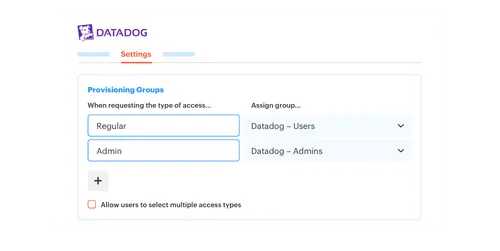
Each approved application role maps to one or more identity provider groups. When the Jira issue reaches the configured approved status, Multiplier calls the identity provider and adds the requester to those groups. Success or failure is written back to the ticket, so an approved request can't be mistaken for completed access.

Approval workflows can route decisions to a manager, application owner, or specific user before provisioning begins. Higher-risk access can stay gated, while understood low-risk roles follow a shorter path. Multiplier provisions through identity provider groups, not by clicking around inside individual SaaS applications, which keeps the execution boundary clear.
Time-Based Access Closes the Loop
Time-Based Access adds the revocation step when the request is created. A requester can select a duration such as 1, 6, or 24 hours. After approval, the mapped group is added, the timer starts, and the identity provider removes that membership at expiry.
Every stage stays attached to the originating Jira issue. The request, approval, grant, and later removal don't need to be rebuilt from chat messages or screenshots. That manual 5-to-30-minute task described earlier disappears for mapped requests, and the evidence is created while the work happens, not after.
If your approved Jira issues still end with a person adding the same group by hand, get started with Multiplier and connect that approval to execution.
Make Low-Risk Change the Default Path
Low-risk change automation works when the process is predictable before the tool executes it. Define the request, map the role, set the approval rule, execute through the identity provider, include revocation, and keep the evidence in Jira. No guessing.
Manual work still belongs in novel or high-risk changes. Standard changes are different. Once the inputs and outcomes are known, repeating the same human steps doesn't buy you more control. It buys delay, cost, and one more chance to miss the single step that matters.
Frequently asked questions
- How do I set up automated provisioning for access requests?
To set up automated provisioning with Multiplier, follow these steps: 1) Integrate Multiplier with your identity provider, like Okta or Google Workspace, by registering it and granting the necessary API permissions. 2) Use the Application Catalog in Jira Service Management to create a list of sanctioned applications and map each role to the corresponding identity provider group. 3) When users submit access requests through Jira or Slack, Multiplier will automatically handle approvals and provisioning based on the defined roles. It simplifies the process and reduces manual errors.
- What if I need to revoke access after a temporary period?
If you want to revoke access after a temporary period, use Multiplier's Time-Based Access feature. When setting up the access request, specify the duration (like 1, 6, or 24 hours). After approval, Multiplier will automatically provision the access and start a timer. Once the time expires, it will remove the user from the mapped identity provider group, so that access is only granted when needed and reducing the risk of overprovisioning.
- Can I customize approval workflows for different roles?
Yes, you can customize approval workflows in Multiplier. To do this, navigate to your Jira Service Management settings and map workflow statuses to 'Waiting for Approval' and 'Approved.' You can designate default approvers globally or override them on a per-app basis, allowing you to route approvals to managers, application owners, or specific users. This flexibility helps make sure the right level of scrutiny is applied based on the role and associated risks.
- When should I consider using the Application Catalog?
Consider using the Application Catalog when you want to streamline access requests and improve user experience. It allows employees to browse sanctioned applications and select roles directly within Jira Service Management. It simplifies the request process but also ensures that the requests include the right context upfront. By centralizing access requests, IT can maintain better control and auditability, so managing approvals and provisioning.
- Why does my access request process take so long?
Your access request process may take longer if approvals and execution are handled separately. To speed things up, use Multiplier to connect Jira approval workflows directly to identity provider group changes. This way, once an access request is approved, Multiplier automatically provisions access without the need for manual intervention. By keeping the request and execution evidence linked in Jira, you can eliminate delays and reduce the chances of human error.
Frequently Asked Questions
How do I set up automated provisioning for access requests?
To set up automated provisioning with Multiplier, follow these steps: 1) Integrate Multiplier with your identity provider, like Okta or Google Workspace, by registering it and granting the necessary API permissions. 2) Use the Application Catalog in Jira Service Management to create a list of sanctioned applications and map each role to the corresponding identity provider group. 3) When users submit access requests through Jira or Slack, Multiplier will automatically handle approvals and provisioning based on the defined roles. It simplifies the process and reduces manual errors.
What if I need to revoke access after a temporary period?
If you want to revoke access after a temporary period, use Multiplier's Time-Based Access feature. When setting up the access request, specify the duration (like 1, 6, or 24 hours). After approval, Multiplier will automatically provision the access and start a timer. Once the time expires, it will remove the user from the mapped identity provider group, so that access is only granted when needed and reducing the risk of overprovisioning.
Can I customize approval workflows for different roles?
Yes, you can customize approval workflows in Multiplier. To do this, navigate to your Jira Service Management settings and map workflow statuses to 'Waiting for Approval' and 'Approved.' You can designate default approvers globally or override them on a per-app basis, allowing you to route approvals to managers, application owners, or specific users. This flexibility helps make sure the right level of scrutiny is applied based on the role and associated risks.
When should I consider using the Application Catalog?
Consider using the Application Catalog when you want to streamline access requests and improve user experience. It allows employees to browse sanctioned applications and select roles directly within Jira Service Management. It simplifies the request process but also ensures that the requests include the right context upfront. By centralizing access requests, IT can maintain better control and auditability, so managing approvals and provisioning.
Why does my access request process take so long?
Your access request process may take longer if approvals and execution are handled separately. To speed things up, use Multiplier to connect Jira approval workflows directly to identity provider group changes. This way, once an access request is approved, Multiplier automatically provisions access without the need for manual intervention. By keeping the request and execution evidence linked in Jira, you can eliminate delays and reduce the chances of human error.


