


A fintech company added 387 employees in just over eight months, then watched hundreds of routine access requests pour through Slack, email, and Jira. Every request looked small. But each one could leave behind a paid license, an identity provider group assignment, or access nobody remembered to remove.
Enterprise SaaS spend cuts usually start at renewal. That’s too late. The bigger leak starts when access is granted, stays open, and survives job changes. If you want the savings to last, you need to control the lifetime of access, not only the contract price.
Key Takeaways:
- Treat every new entitlement as a future removal task.
- Map app roles to identity provider groups before automating access.
- Make elevated access temporary, with automatic expiry.
- Use login activity to identify licenses people no longer need.
- Keep requests, approvals, grants, and removals in one record.
- Set different reclamation rules for different app risk levels.
Why Enterprise SaaS Spend Cuts Miss the Access Problem
Enterprise SaaS spend cuts fail when procurement reduces the price per license, while IT keeps adding licenses without a reliable removal process. Renewal savings matter, but they only change the unit price. Lasting savings come from controlling how many paid entitlements remain active, who owns them, and when they should expire.

Procurement Can’t Fix an Access Lifecycle
A hard renewal negotiation can absolutely save money. Finance is right to push on shelfware, unused seats, and contracts that grew faster than headcount. I’d do the same. The limitation is that procurement sees the bill after months of access decisions have already piled up.

Think of each entitlement as a running meter. Procurement can lower the rate on that meter, but access controls decide how many meters stay on. If IT grants 100 licenses, removes 20, and loses track of the other 80, a 15% discount doesn’t solve the underlying cost problem. You’re paying less for the same broken access lifecycle.
The request-to-revocation chain is the part worth inspecting, and Learn more about Multiplier connects that chain back to the Jira work already happening.
Small Requests Create Expensive Leftovers
At one fast-growing fintech company, a routine request took between 5 and 30 minutes. An employee asked in Slack or email, IT chased a manager, someone opened Okta, and then the group assignment had to be logged for audit. Multiply that by hundreds of requests. Not fun.
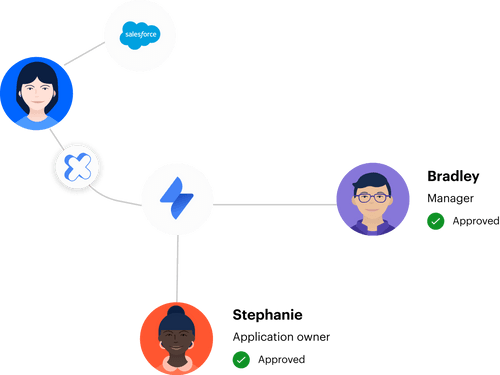
The manual time was visible. The access left behind wasn’t. When someone changed roles, finished a project, or stopped using an app, the original request rarely carried a clear removal date. After the company centralized requests and automated standard group assignments, IT workload tied to access requests dropped by 80%.
Manual access has another nasty side effect. IT starts granting broader or longer access because repeating the process is painful. A six-month entitlement feels easier than handling a new request next week, even when six hours would cover the work. Cost control and least privilege break for the same reason: removing access takes too much effort.
Enterprise SaaS spend cuts won’t stick until every grant has a clear path to removal. The real question is how to build that path without creating another pile of admin work.
How to Cut SaaS Spend Through Access Control
Cutting SaaS spend through access control requires six connected practices: inventory entitlements, standardize requests, provision through identity provider groups, limit access duration, reclaim inactive licenses, and review changes in one system. Each practice closes a different leak. Together, they turn software cost reduction from a renewal project into daily IT operations.
Diagnose the Access Gaps Before Buying Another Tool
If you can’t explain who approved an entitlement, how it was granted, and when it should end, you don’t have a spend record. You have a billing record. Those are completely different things. One shows what you bought, while the other explains why you’re still paying for it.
Start with your 10 highest-cost or fastest-growing applications. Pull the paid seat count, active group membership, last-login data, role owner, and any expiry information you already have. You don’t need a six-month audit. Frankly, two hours with those 10 apps will expose most of the operating gaps.
Ask these questions for every application:
- Can IT name the owner of each paid role?
- Does every user have an originating request or business reason?
- Can you see recent login activity from the identity provider?
- Does temporary or elevated access have an expiry?
- Can a revocation decision trigger the actual removal?
Three missing answers means the app needs lifecycle work before the next renewal. Five missing answers means the seat count is mostly guesswork. Fix visibility first, because automating a bad entitlement list only makes the bad list move faster.
Replace Free-Form Requests With Sanctioned Roles
A software catalog isn’t just a nicer request form. It controls what employees can ask for and which role they receive. Without that structure, one person asks for “Figma,” another asks for “design access,” and a third requests “admin because I need to update one file.” IT has to translate every version.
Build each catalog entry around a sanctioned application and a small set of roles. Viewer, Editor, and Admin is often enough, though the actual roles should match the identity provider groups you already use. Each role needs an owner, approval path, cost, and default duration. If a field doesn’t affect the decision or provisioning step, drop it.
A usable catalog entry should answer four things:
- What is being requested? Name the application and exact role.
- Why is it needed? Capture the project or job reason.
- Who decides? Route it to the manager, app owner, or named approver.
- When does it end? Set permanent access only when permanent access is justified.
Some apps won’t fit a clean catalog because provisioning is manual or the role model is messy. Fair point. Keep those requests in the same intake process anyway, then flag them for manual action. Centralized evidence still beats a Slack message nobody can find three months later.
Provision Through Identity Provider Groups
An AI company processing more than 3,800 access requests in one year automated 75% of them with a four-person IT Ops team supporting over 420 employees. The important part wasn’t the request form. Provisioning happened through mapped identity provider groups after approval, which removed the repetitive admin step.
Group mapping gives each sanctioned role a deterministic action. A Jira request for Editor maps to the Editor group in Okta, Entra ID, or Google Workspace. Approval changes the ticket status, and the status triggers the group addition. The same mapping can later support removal, which is where SaaS cost reduction starts getting interesting.
Use a simple order when setting this up:
- Map the most common low-risk role first.
- Confirm the identity provider group grants the intended application access.
- Test both addition and removal with a non-production user.
- Record success or failure on the originating request.
- Expand only after the removal path works.
Don’t automate grants without testing revocations. I’ve seen teams get excited about instant access, then discover that nobody designed the reverse action. Fast provisioning with manual cleanup creates a bigger backlog later.
The product view of that exact request-to-group flow is available through See how Multiplier works, from Jira approval to the identity provider change.
Make Temporary Access the Default for Elevated Roles
Temporary access should be the default whenever the work has a known end. Admin permissions for an incident, contractor access for a project, and production access for a deployment rarely need to remain forever. Permanent access is easy to grant and surprisingly hard to justify later.
Offer a small set of durations rather than a free-form date field. One hour, six hours, and 24 hours cover many elevated access cases. Longer project access can use a defined end date. When the timer expires, remove the user from the mapped identity provider group and record the change against the request.
A practical duration policy looks like this:
- High-risk admin roles: 1 to 6 hours.
- Production troubleshooting: 6 to 24 hours.
- Short project work: Defined project end date.
- Ongoing job access: Permanent, with periodic review.
Time limits do create some repeat requests. That’s the honest downside. Yet a repeat request with fast approval is usually cheaper than carrying unused licenses and standing privilege for six months. The operating goal isn’t zero requests. It’s low-friction access that reliably ends.
Reclaim Inactive Licenses With Different Thresholds
Thirty days of inactivity may justify reclaiming one app, while 90 days makes more sense for another. Usage-based SaaS spend cuts work when thresholds match how people actually use the software. A daily collaboration tool and a quarterly planning tool shouldn’t share the same rule.
Start with apps that have reliable last-login data in your identity provider. Set an inactivity threshold, add a grace period, and notify the user before removal. If they log in, access stays. If they don’t, remove the entitlement and create a record of the change.
Use different policies based on usage:
- Daily tools can use shorter inactivity thresholds.
- Monthly reporting tools need a longer window.
- Seasonal applications should reflect the business calendar.
- Executive, service, or critical groups may need exclusions.
- Apps without reliable telemetry should stay in manual review.
Automatic reclamation isn’t right for every license. Some applications don’t expose useful login data, and some access supports work that happens only a few times per year. That’s a real limitation. The rule still holds: automate where evidence is reliable, then route the exceptions into a review instead of pretending one policy fits everything.
Connect Reviews, Transfers, and Offboarding
What happens when someone moves from Sales to Finance? Their new access gets attention because they’re waiting for it. The old CRM permissions, sales intelligence license, and shared groups rarely create the same urgency, so they survive the transfer.
Treat role changes as both provisioning and deprovisioning events. The same Jira workflow that adds Finance access should identify Sales groups for removal. Offboarding needs the same pattern, except the removal scope is broader. Every change should end with confirmation from the identity provider, not a checkbox saying somebody intended to do it.
Periodic access reviews catch whatever slips through. Reviewers need app ownership, group membership, department, job title, and last-login context before deciding Keep or Revoke. Once they choose Revoke, the decision should trigger removal rather than create another task for IT to remember.
Run reviews based on risk and cost:
- Review privileged and expensive apps more often.
- Review low-cost, low-risk tools on a longer cycle.
- Escalate any app with no named owner.
- Track revocation completion, not only reviewer responses.
- Feed repeated findings back into request rules.
Enterprise SaaS spend cuts become repeatable when request data, usage evidence, and revocation actions share the same operating record. Without that connection, every quarter starts with another spreadsheet rebuild.
How Multiplier Connects Access to SaaS Spend
Multiplier connects SaaS cost control to access operations inside Jira Service Management. Approved requests can trigger identity provider group changes, temporary access can expire automatically, and inactivity policies can reclaim eligible licenses. The originating Jira issue keeps the approval and access change tied together, so IT doesn’t have to rebuild the story later.
Group-Based Provisioning With Automatic Expiry
Multiplier maps catalog roles to groups in Okta, Entra ID, or Google Workspace. When a Jira issue reaches the configured approved status, the platform calls the identity provider to add the requester to the mapped group. For SSO applications, downstream access depends on that group mapping rather than a person manually opening each app.

Time-Based Access uses the same path in reverse. A requester can choose a configured duration, such as one, six, or 24 hours. Once that time expires, the platform removes the user from the mapped group and records the change in Jira. Automatic removal only works when the entitlement is managed through identity provider group membership, so manual and non-SSO grants still need a human process.
Usage-Based Reclamation With Jira Evidence
Auto Reclaim uses last-login data from connected identity providers to find inactive users for in-scope applications. Admins set inactivity thresholds, grace periods, and group exclusions. Users get a warning before access is removed, giving them time to log in if they still need the license.
If the user remains inactive, access is revoked and a Jira ticket records the removal. Auto Reclaim is available on the Advanced edition, and its accuracy depends on reliable identity provider login telemetry. For apps without that data, Jira-native access reviews provide a separate path where reviewers can inspect user details and choose Keep or Revoke.
If inactivity policies and linked Jira evidence are missing from your spend controls, Get started with Multiplier lets you look directly at that workflow.
Once grants and removals share a record, savings stop being a quarterly hunt.
Make Enterprise SaaS Spend Cuts Stick
Enterprise SaaS spend cuts stick when access removal becomes part of the original request, not a cleanup project before renewal. Procurement can still negotiate the rate. IT controls the quantity by limiting duration, using login evidence, and removing entitlements through the identity provider.
Start with 10 costly applications. Map the roles, owners, usage signals, and expiry rules. Then automate the most common request all the way through revocation.
Lower spend follows better access control.
Frequently asked questions
- How do I set up time-based access for my team?
To set up time-based access with Multiplier, follow these steps: 1) In the Jira Service Management portal, create a new access request type and enable time-based access for the relevant applications. 2) Define the available durations (like 1, 6, or 24 hours) for elevated roles. 3) When employees submit requests, they can select the desired duration. After approval, Multiplier will automatically provision access and set a timer to revoke it when the time expires. This helps ensure that access is only granted for as long as necessary, reducing the risk of overprovisioning.
- What if I need to reclaim licenses from inactive users?
To reclaim licenses from inactive users using Multiplier, you can set up the Auto Reclaim feature: 1) Define inactivity thresholds for your applications (e.g., 30 days without login) and a grace period for users to log in before access is revoked. 2) Multiplier will automatically monitor last login data and send notifications to users approaching the threshold. 3) If users remain inactive after the grace period, Multiplier will revoke their access and document the change in Jira. This process helps optimize your SaaS spend by making sure that licenses are only held by active users.
- Can I automate access approvals in Slack?
Yes, you can automate access approvals in Slack with Multiplier. To do this: 1) Install the Multiplier Slack app in your workspace. 2) When employees request access via Slack, they can browse the same application catalog available in Jira Service Management. 3) Approvers will receive notifications in Slack with options to approve or deny requests directly. This integration streamlines the approval process, reduces context switching, and keeps all evidence linked to the original Jira ticket for audit purposes.
- When should I conduct access reviews?
You should conduct access reviews regularly to maintain effective access control. With Multiplier, you can set up access review campaigns based on risk and cost: 1) Review high-risk and high-cost applications more frequently, perhaps quarterly. 2) For low-cost, low-risk tools, consider a longer review cycle. 3) Use the Access Reviews feature in Multiplier to assign reviewers and track their decisions within Jira, making sure that revocations are executed automatically and documented for compliance.
Frequently Asked Questions
How do I set up time-based access for my team?
To set up time-based access with Multiplier, follow these steps: 1) In the Jira Service Management portal, create a new access request type and enable time-based access for the relevant applications. 2) Define the available durations (like 1, 6, or 24 hours) for elevated roles. 3) When employees submit requests, they can select the desired duration. After approval, Multiplier will automatically provision access and set a timer to revoke it when the time expires. This helps ensure that access is only granted for as long as necessary, reducing the risk of overprovisioning.
What if I need to reclaim licenses from inactive users?
To reclaim licenses from inactive users using Multiplier, you can set up the Auto Reclaim feature: 1) Define inactivity thresholds for your applications (e.g., 30 days without login) and a grace period for users to log in before access is revoked. 2) Multiplier will automatically monitor last login data and send notifications to users approaching the threshold. 3) If users remain inactive after the grace period, Multiplier will revoke their access and document the change in Jira. This process helps optimize your SaaS spend by making sure that licenses are only held by active users.
Can I automate access approvals in Slack?
Yes, you can automate access approvals in Slack with Multiplier. To do this: 1) Install the Multiplier Slack app in your workspace. 2) When employees request access via Slack, they can browse the same application catalog available in Jira Service Management. 3) Approvers will receive notifications in Slack with options to approve or deny requests directly. This integration streamlines the approval process, reduces context switching, and keeps all evidence linked to the original Jira ticket for audit purposes.
When should I conduct access reviews?
You should conduct access reviews regularly to maintain effective access control. With Multiplier, you can set up access review campaigns based on risk and cost: 1) Review high-risk and high-cost applications more frequently, perhaps quarterly. 2) For low-cost, low-risk tools, consider a longer review cycle. 3) Use the Access Reviews feature in Multiplier to assign reviewers and track their decisions within Jira, making sure that revocations are executed automatically and documented for compliance.


