


If your access request has sat unapproved for 24 hours, the escalation path is already late. By then, the requester has pinged IT, IT has chased the approver, and nobody knows who owns the next move. I've seen teams treat that delay like a reminder problem, then add more Slack nudges and hope someone responds. The fix starts earlier, with Jira routing the request to a named backup before the queue becomes the process.
A lot of IT teams treat delay like a communication problem. Someone hasn't replied, so they send another Slack message. Then an email. Then they tag the person's manager in Jira. Everyone gets more notifications, but the access request still hasn't moved.
Good escalation is different. It changes the workflow.
Key Takeaways:
- Define delay using Jira status time, not how annoyed the requester feels.
- Set different clocks for routine access, paid licenses, and privileged roles.
- Route delayed requests to someone with decision authority, not just more seniority.
- Separate approval delays from provisioning delays so you can fix the actual bottleneck.
- Make every escalation change ownership, status, or the allowed next action.
- Include revocation and inactive license reclamation in the same access workflow.
Why Delayed Access Requests Keep Escaping Jira
Delayed access requests keep escaping Jira because decisions, provisioning, and evidence live in different systems. The Jira ticket shows the request, Slack holds the approval conversation, and the identity provider holds the actual change. Escalation becomes manual because no single system knows what should happen next.

More portals create more places to wait
At one fintech, rapid growth pushed headcount to nearly 1,200 employees. Hundreds of routine access requests arrived through Slack, email, and Jira. Each request could take IT 5 to 30 minutes because someone had to chase approval, open Okta, assign the right group, then update the record for audit. Delayed approval paths were just one part of the problem.
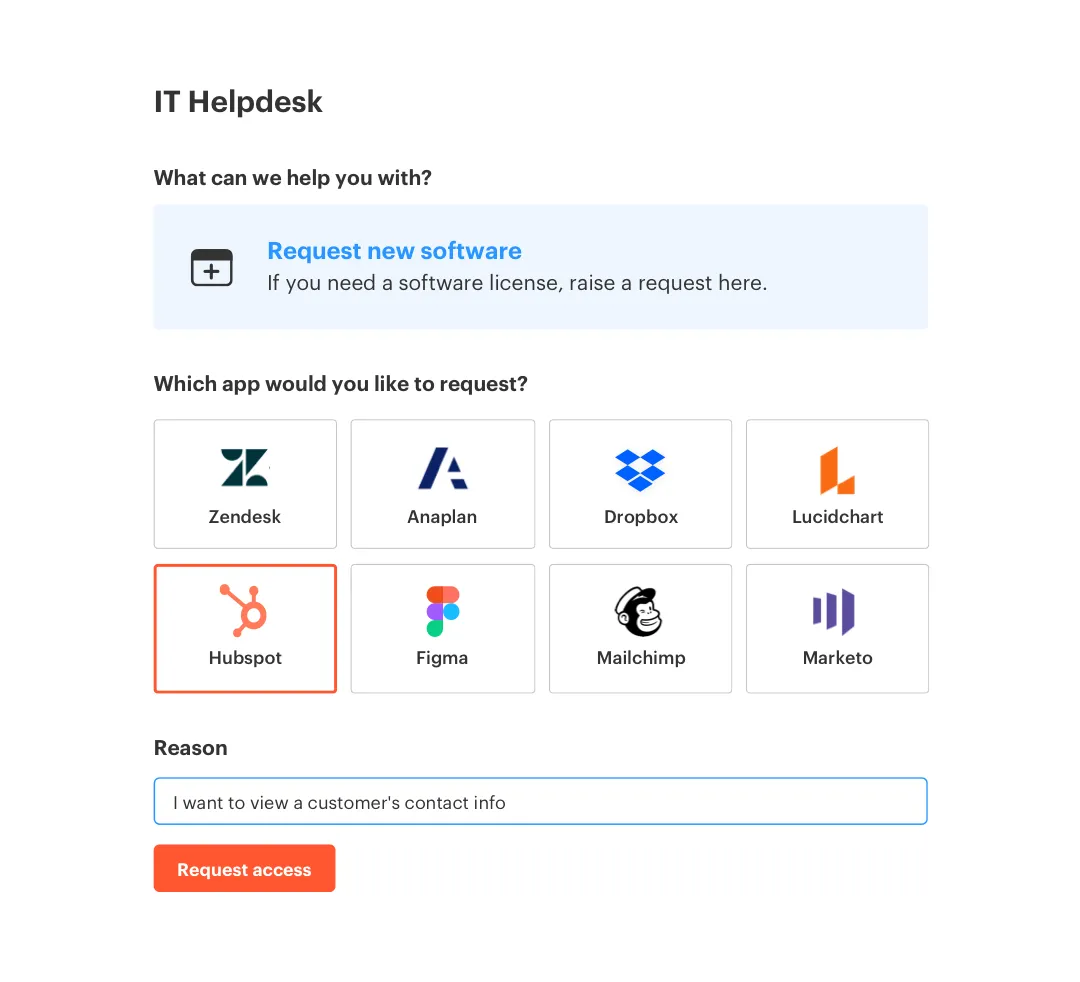
After the company centralized intake and automated the routine work, IT workload tied to access requests fell by 80%. The big change wasn't a more aggressive reminder schedule. Requests, approvals, provisioning, and evidence followed one connected path. Once each approved request could trigger the identity change, escalation stopped being a scavenger hunt.
A separate IGA portal can make sense for companies with deep policy needs and dedicated identity teams. That's a fair reason to keep one. Yet if employees still request access in Jira and approvers still work in Slack, adding another portal gives delayed requests another place to stall. The system with the policy isn't necessarily the system where people act.
Reminders preserve the original bottleneck
A developer requests access to a Git repository in Jira. The app owner is away, so IT sends a Slack message. The developer follows up in the ticket, their manager replies in email, and someone eventually adds the user to an identity provider group. Now the access works, but Jira doesn't show who approved the exception or why the normal path was skipped.
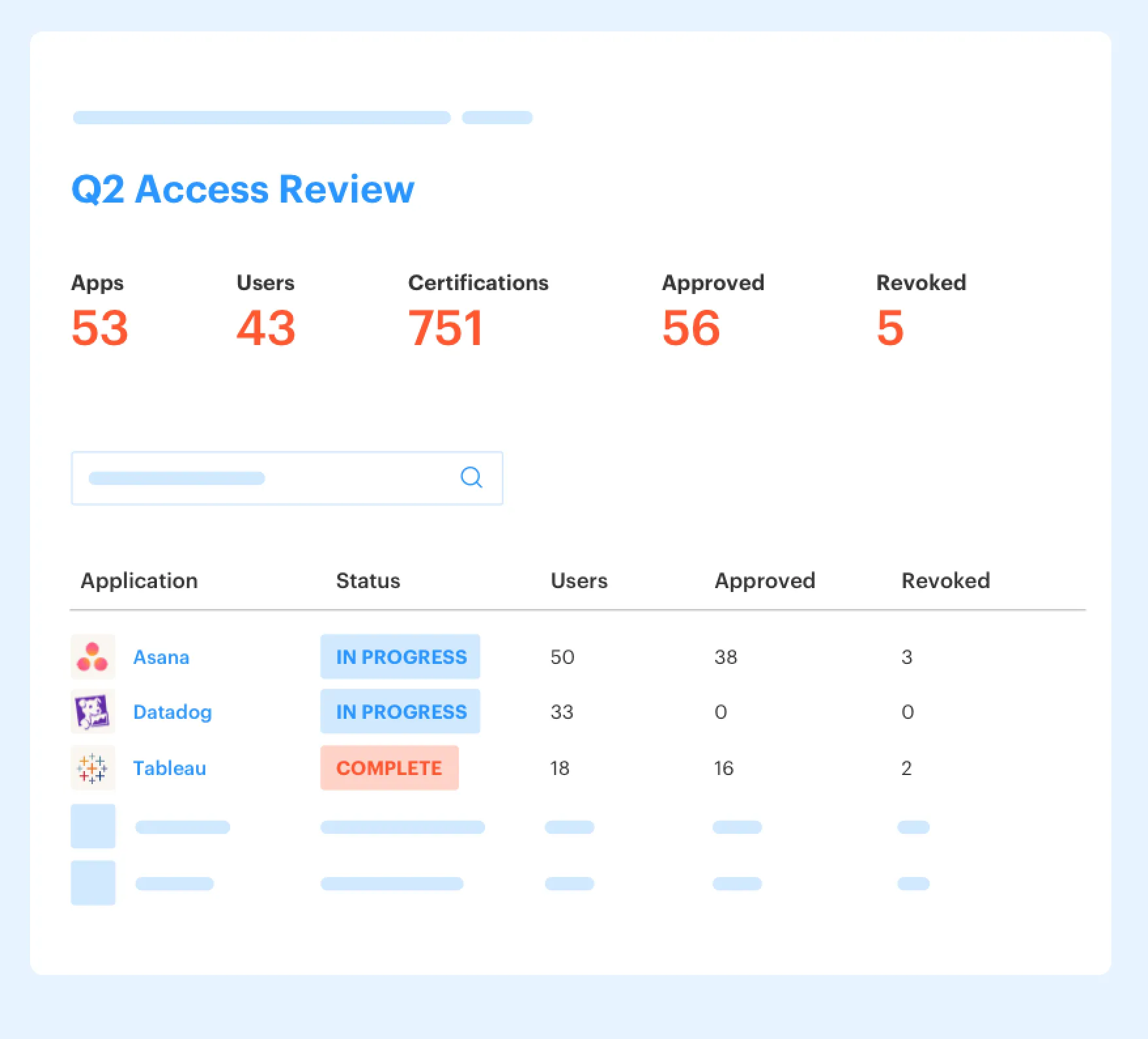
Nothing escalated. The team worked around the delay.
An escalation path should behave more like a Jira state machine than a megaphone. Once a threshold is crossed, the ticket changes state, ownership moves, and a defined backup gets permission to act. Sending the same request through four channels only makes the audit trail worse.
Keeping the escalation and its evidence on one Jira issue is why IT teams choose Multiplier, especially if your current workflow leaves decisions spread across tickets and chat messages. Before choosing any product, though, you need to define what each timeout should actually do.
How to Build Escalation Paths for Delayed Access
Strong escalation paths for delayed access requests start with five decisions: when the clock begins, which threshold applies, who gets the ticket next, what action becomes available, and how closure is recorded. If any one of those decisions is missing, escalation falls back to manual chasing.
Diagnose where access requests are actually getting stuck
Pull the last 30 days of access tickets and measure time in each status. Don't start with average completion time, because one emergency request can distort it. Look at the median, the 90th percentile, and the number of tickets that crossed your stated service target. That shows whether delay is common or limited to a few odd cases.
Next, split the waiting time into approval, fulfillment, and requester response. A ticket waiting 20 hours for a manager is a routing problem. A ticket approved in 10 minutes but sitting another day before group assignment is an execution problem. Combining both under "slow access" makes the wrong person responsible for fixing it.
Ask four questions during the review:
- Does one approver account for more than half of the delayed decisions?
- Do requests arrive without the role, duration, or business reason needed to decide?
- Are approved tickets waiting longer for provisioning than they waited for approval?
- Do people bypass Jira once the ticket crosses its target?
If the first answer is yes, add backup ownership. If the second is yes, fix request intake before touching escalation. When provisioning is the slow part, more approval reminders won't change anything.
Set the clock according to access risk
Routine access and privileged access shouldn't share one timer. A four-hour wait for a design tool might be annoying. A four-hour wait during a production incident can block recovery. Yet auto-approving a sensitive role because someone missed a notification creates a much larger problem.
Use a few starting thresholds, then adjust them using your own ticket data:
- Routine access to an approved app: Aim for a decision within four business hours, then route to a backup owner.
- Paid or elevated application roles: Require acknowledgement within two hours and a decision within one business day.
- Emergency privileged access: Require acknowledgement within 15 minutes, then route to the designated backup after 30 minutes.
- Incomplete requests: Pause the approval clock until the requester supplies the missing role, reason, or duration.
Those numbers aren't universal benchmarks. They're starting points. A 30-minute threshold makes sense when production work is blocked, but it would create pointless noise for software requested during onboarding two weeks before a start date.
The clock also needs a clear starting event. "Ticket created" works when the form requires all decision inputs. If IT still has to ask which role the person needs, start the approval clock only after the request becomes decision-ready. Otherwise, you're measuring form quality and approver speed as if they're the same thing.
Route the ticket to someone who can decide
Who can make the same decision when the primary approver is unavailable? If the answer is "their manager's manager," your escalation path is based on hierarchy rather than authority. Seniority doesn't tell you whether someone understands the app, its cost, or the risk of the requested role.
For each application, name a primary approver and at least one backup with equivalent decision rights. Routine apps might route from the app owner to the requester's manager. Privileged access might route from the system owner to a named security approver. Finance should enter the path when the request creates a material license cost, not every time someone asks for access.
Tight escalation can frustrate approvers. That's a real downside, especially when every request gets treated like an emergency. The fix isn't to remove escalation. Use acknowledgement thresholds first, then transfer decision ownership only when the business impact justifies it.
Never let escalation turn a missing decision into automatic approval for privileged access. The safe fallback is reassignment, not consent by timeout. Low-risk apps can follow different rules, but those rules should be explicit in Jira before a request arrives.
Make every timeout change the Jira ticket
A delayed approval path should create a workflow event, not another generic notification. Jira needs to show that the original target was missed, who owns the request now, and what changed because of the delay. Otherwise, the team has activity without control.
Build each escalation transition around a concrete state change. Frankly, this is where a lot of workflows fall apart. They send five reminders but never reassign the ticket, expose a backup approver, or create a different path for urgent access.
A practical sequence looks like this:
- Target approaching: Notify the current approver with the request, role, duration, and deadline.
- Target missed: Reassign or add the designated backup approver.
- Second threshold missed: Route to the service owner or security owner based on access risk.
- Decision made: Record the approver, decision, reason, and next fulfillment action in Jira.
- Provisioning failed: Move the ticket into a separate exception state owned by IT.
The third step shouldn't always involve an executive. Escalating every delayed Figma request to the CIO teaches people to ignore the workflow. Route based on the authority needed to resolve the ticket.
If your current delayed approval path ends with another Slack ping, See how Multiplier works against the state changes above. The useful comparison is whether each approval action moves the Jira record and the underlying access, not how many notifications the system can send.
Separate approval delays from provisioning delays
An approval completed in 12 minutes can still produce a two-day access request. Approval is only the decision. Someone may still need to open Okta or Entra, locate the correct group, add the user, verify the change, and update Jira. One clock hides that entire second queue.
Track at least two service targets. The first runs from a decision-ready request to approval or denial. The second runs from approval to confirmed provisioning. When the first target passes, ownership belongs with the approver. When the second passes, ownership belongs with the person or system executing the identity change.
A mid-market advertising company learned this during growth from 100 to 500 employees. New hires started on Monday, then Tuesday filled the IT queue with access requests missing key details. After introducing a sanctioned app catalog inside Jira, the company processed more than 500 requests in six months and saved over 70 hours of IT time. Better intake removed part of the delay before escalation was even needed.
Automation also changes what counts as resolution. An approved ticket isn't complete just because its status says Done. Completion should mean the mapped identity provider change succeeded, failed with a clear owner, or was marked for manual handling because the app isn't connected. Status should follow the change, not wishful thinking.
Carry the same controls through revocation
Access escalation shouldn't stop once someone gets into the app. Temporary roles need an expiry path. Paid licenses need an inactivity path. Without those controls, IT solves the immediate delay while leaving standing access and SaaS cost behind.
Start by separating access into permanent, time-bound, and usage-dependent grants. Permanent access stays until a lifecycle event or review changes it. Time-bound access expires after the approved window. Usage-dependent access stays active only while login data shows the license is being used.
For paid SaaS applications, define three policy inputs:
- An inactivity threshold based on the normal usage pattern for that app
- A grace period that gives the user time to retain access
- Exclusions for groups that shouldn't be evaluated on login frequency alone
A 30-day inactivity threshold can work for a tool people use every week. It would be a bad rule for software used once per quarter. If your identity provider can't supply reliable last-login data for an app, don't automate reclamation for it. Bad telemetry makes a precise-looking policy wrong.
Usage-based reclamation creates a useful connection between access governance and procurement. IT no longer has to run a spreadsheet exercise before every renewal. The same workflow that grants access can identify inactive users, warn them, revoke unused access after the grace period, and record the change.
Once escalation, provisioning, expiry, and reclamation follow defined Jira states, the remaining question is how much of that work people should still execute by hand.
How Multiplier Keeps Access Work Moving in Jira
Multiplier keeps access work inside Jira Service Management and Slack, while identity changes run through Okta, Entra ID, or Google Workspace. Approval, provisioning, revocation, and evidence stay tied to the originating Jira issue. Employees can submit requests through the JSM portal or Slack using the same application catalog.
Approvals trigger authoritative identity changes
Multiplier routes Approval Workflows to a manager, app owner, or named user through JSM and Slack. Approvers can act from Slack, while Jira remains the system of record. Once the issue reaches the configured approved status, automated provisioning adds the user to mapped identity provider groups and writes the outcome back to the ticket.

That removes the manual group assignment that previously consumed 5 to 30 minutes in the fintech example. Provisioning still depends on identity provider group mappings. For non-SSO apps or grants that aren't controlled through those groups, the Jira issue can retain the request and approval record, but the change itself remains manual.
The workflow covers three separate points of failure:
- Approval delay: The correct manager or app owner receives the decision in Jira or Slack.
- Provisioning delay: Approval triggers the mapped identity provider group change.
- Evidence gaps: Status and execution details are written to the Jira issue.
Time limits and login data close the cost loop
Time-Based Access adds an expiry to approved access windows, such as 1, 6, or 24 hours. When the timer ends, the user is removed from the mapped identity provider group and the change is recorded in Jira. Automatic removal only works when access is controlled through that group, which is an important boundary.
Auto Reclaim handles a different cost problem. It uses last-login telemetry from connected identity providers, then applies configured inactivity thresholds, grace periods, and group exclusions. Users get a warning first. If they remain inactive, access is revoked and a Jira ticket records the removal. Auto Reclaim is available on the Advanced edition, and it depends on accurate login data from the connected identity provider.
For IT teams trying to connect delayed requests with provisioning, expiry, and license reclamation, Get started with Multiplier by mapping one approved application and its identity provider groups. A narrow first workflow makes it easier to test ownership and evidence before expanding the model.
Turn Delayed Approvals Into a Controlled Workflow
Escalation paths for delayed access requests work when every timeout changes the workflow. Define the clock, assign a backup with real authority, separate approval from provisioning, and keep the evidence on the Jira issue. More reminders won't fix a path with no next owner.
Start with 30 days of ticket data and one high-volume application. Find where requests wait, then change that state before adding more notifications. Once the decision and identity change follow one record, delays become measurable, fixable, and much harder to ignore.
Frequently asked questions
- How do I set up automated provisioning with Multiplier?
To set up automated provisioning with Multiplier, follow these steps: 1) Integrate Multiplier with your identity provider, such as Okta or Azure AD, by registering it and granting necessary API permissions. 2) Use the Application Catalog in Jira Service Management to display approved applications, allowing employees to request access easily. 3) Once a request is approved, Multiplier will automatically provision access by managing identity provider groups, eliminating manual steps. This streamlines the process and reduces the time IT spends on access requests.
- What if my access request gets stuck in Jira?
If your access request is stuck in Jira, consider the following actions: 1) Check the ticket status to see if it's awaiting approval. If so, follow up with the designated approver via Jira or Slack. 2) Ensure that all required information was provided in the request. Incomplete requests can delay processing. 3) If delays persist, escalate the issue by routing it to a backup approver using Multiplier's approval workflows, ensuring someone with authority can make the decision.
- Can I track access request statuses in Multiplier?
Yes, you can track access request statuses in Multiplier. Each request creates a Jira ticket that logs all actions taken, including approvals and provisioning. You can monitor the ticket to see its current status, who the approver is, and any changes made. This centralized tracking helps maintain a clear audit trail and ensures that all evidence is linked to the original request, making it easier to manage and review access requests.
- When should I use time-based access in Multiplier?
You should use time-based access in Multiplier when granting elevated permissions that are not needed permanently. For example, if a user requires access to a sensitive application for a specific project, you can set a duration (like 1, 6, or 24 hours) for their access. This minimizes security risks by ensuring that permissions expire automatically when no longer needed, and it helps reduce license waste by revoking access after the job is done.
- Why does my team need to automate access requests?
Automating access requests is crucial for several reasons: 1) It significantly reduces the time IT spends on manual tasks, allowing your team to focus on more strategic initiatives. 2) It minimizes errors associated with manual provisioning, ensuring that users receive the correct access without delays. 3) Using Multiplier's integrated workflows in Jira Service Management ensures that all requests, approvals, and provisioning actions are logged in one place, simplifying audits and compliance.
Frequently Asked Questions
How do I set up automated provisioning with Multiplier?
To set up automated provisioning with Multiplier, follow these steps: 1) Integrate Multiplier with your identity provider, such as Okta or Azure AD, by registering it and granting necessary API permissions. 2) Use the Application Catalog in Jira Service Management to display approved applications, allowing employees to request access easily. 3) Once a request is approved, Multiplier will automatically provision access by managing identity provider groups, eliminating manual steps. This streamlines the process and reduces the time IT spends on access requests.
What if my access request gets stuck in Jira?
If your access request is stuck in Jira, consider the following actions: 1) Check the ticket status to see if it's awaiting approval. If so, follow up with the designated approver via Jira or Slack. 2) Ensure that all required information was provided in the request. Incomplete requests can delay processing. 3) If delays persist, escalate the issue by routing it to a backup approver using Multiplier's approval workflows, ensuring someone with authority can make the decision.
Can I track access request statuses in Multiplier?
Yes, you can track access request statuses in Multiplier. Each request creates a Jira ticket that logs all actions taken, including approvals and provisioning. You can monitor the ticket to see its current status, who the approver is, and any changes made. This centralized tracking helps maintain a clear audit trail and ensures that all evidence is linked to the original request, making it easier to manage and review access requests.
When should I use time-based access in Multiplier?
You should use time-based access in Multiplier when granting elevated permissions that are not needed permanently. For example, if a user requires access to a sensitive application for a specific project, you can set a duration (like 1, 6, or 24 hours) for their access. This minimizes security risks by ensuring that permissions expire automatically when no longer needed, and it helps reduce license waste by revoking access after the job is done.
Why does my team need to automate access requests?
Automating access requests is crucial for several reasons: 1) It significantly reduces the time IT spends on manual tasks, allowing your team to focus on more strategic initiatives. 2) It minimizes errors associated with manual provisioning, ensuring that users receive the correct access without delays. 3) Using Multiplier's integrated workflows in Jira Service Management ensures that all requests, approvals, and provisioning actions are logged in one place, simplifying audits and compliance.


