


By 9:12 Tuesday, the access review owner has sent three follow-ups and received one vague thumbs-up. Two approvers still haven’t responded. Meanwhile, the deadline is getting closer, and nobody knows whether another Slack message will change anything.
When IT leaders ask, “how do automated reminders work?” they’re usually asking the wrong question. Sending the message is easy. The real work is tying that message to a decision, an owner, a deadline, and an action when nobody responds.
Key Takeaways:
- Trigger automated reminders from workflow status, not a separate calendar.
- Send no more than two reminders before escalating or closing the request.
- Treat reminders as prompts for decisions, not evidence that work happened.
- Never rely on reminder automation to revoke privileged access.
- Keep the request, approval, change, and evidence in one system.
Why Automated Reminders Fail in Fragmented Access Workflows
Automated reminders fail when the reminder lives apart from the work it’s supposed to move. A message gets sent, but the system can’t tell whether the request was approved, rejected, reassigned, or completed somewhere else. You get more notifications without getting a reliable outcome.

The ping isn’t the control
A reminder only asks someone to act. It doesn’t guarantee they make the decision, and it definitely doesn’t enforce the decision after they make it. That distinction matters a lot in access governance, where a delayed response can leave an employee waiting or allow elevated access to stay active longer than intended.
Think of automated reminders like retries in a software process. A retry is useful when the first attempt fails, but repeating the same request forever doesn’t complete the transaction. At some point, the workflow needs a defined failure path.
Simple reminders do have value. If you have 20 low-risk approvals per month and the same two managers handle them, an email follow-up may be enough. Once volume grows, the weakness shows up fast: reminder automation can’t make up for unclear ownership or missing enforcement.
Requests cross too many systems
A common access workflow starts in Jira, moves to Slack, gets approved in email, and ends with an admin changing a group in Okta or Entra. Audit evidence is then copied into a spreadsheet. Every handoff creates another place where the current status can be misunderstood.
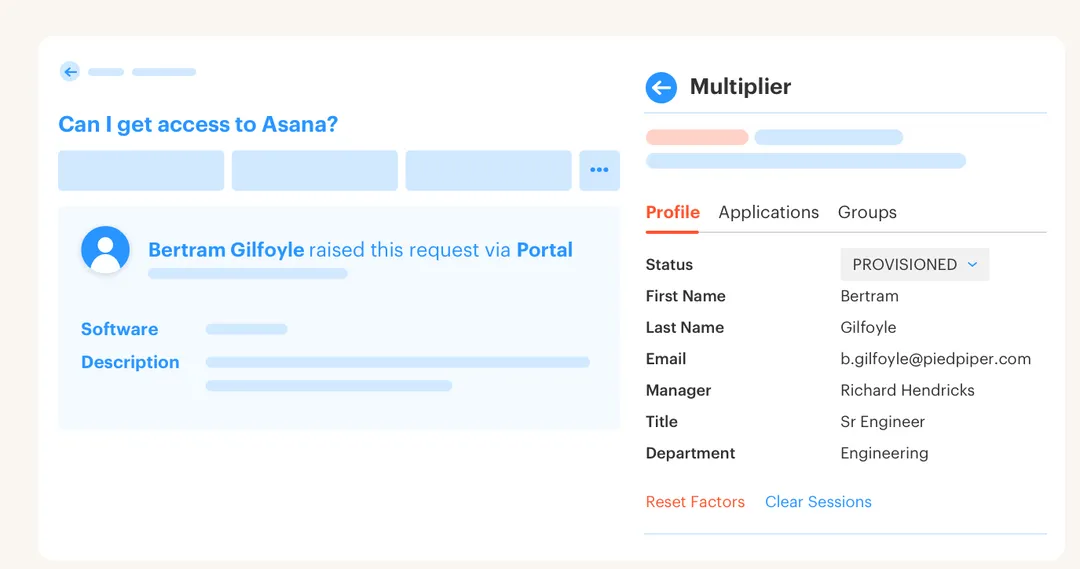
At a 500-person advertising company, new hires created a rush of access tickets every Tuesday. Requests often arrived without enough detail, while unclear app ownership slowed decisions. After moving sanctioned apps into a self-service catalog in Jira, the company processed 500+ requests in six months and saved more than 70 hours of IT time.
The catalog didn’t win because it sent better pings. It won because requests arrived with the app, role, requester, and approval path already attached. The Jira-first model matters because the record already exists, and you can Learn more about Multiplier in the context of that exact workflow.
Missing responses create hidden policy decisions
An unanswered request looks like an operational delay, but it’s really an undefined policy decision. Should the request stay open? Should it move to the manager’s manager? Should low-risk access be approved automatically? Most teams haven’t decided, so the ticket sits there.
That gets uncomfortable during an audit. The reminder log may prove that someone received three messages, but it doesn’t prove that access was reviewed or removed. You still need the final decision and the identity change tied back to the request.
And honestly, chasing people wears IT down. You start with a polite message, send another one two days later, then post in a shared channel because the employee is blocked. The whole thing feels personal, even though the real problem is a workflow with no defined ending.
The fix starts by designing what happens after the reminder, not rewriting the reminder text.
How Automated Reminders Should Drive Access Decisions
Automated reminders should move a request toward one of four outcomes: approval, denial, escalation, or closure. Each follow-up needs a trigger based on workflow state, plus a defined next action if nobody responds. Otherwise, the automation is just producing more inbox traffic.
Find the decision that is actually stuck
What decision are you waiting for? That sounds obvious, but plenty of reminder automation gets built around a ticket age rather than a missing decision. A request can be three days old because it lacks information, because the approver is away, or because provisioning failed after approval.
Those are different problems. Sending the manager another approval reminder won’t fix a missing role selection or a failed identity provider call. Before setting any automatic reminders, inspect five recent delayed requests and identify the exact state where each one stopped.
Use these questions to diagnose the gap:
- Is the request waiting for information, approval, or execution?
- Is one named person responsible for the next decision?
- Can the system detect when that decision happens elsewhere?
- Does a non-response trigger escalation, expiry, or closure?
- Will the final action be written back to the original ticket?
If you can’t answer at least four of those questions, don’t automate the follow-up yet. You’ll be automating confusion. Fix the state model first.
Trigger follow-ups from workflow state
A calendar knows that 24 hours passed. It doesn’t know that the approver changed, the request was withdrawn, or the user already received access through another process. Workflow-based automated reminders can check those conditions before sending anything.
Start with the status that represents a real approval gate. When a ticket enters that status, record the responsible approver and the entry time. Cancel pending reminders the moment the ticket leaves that status, because messages sent after a decision make users distrust the whole process.
A practical low-risk approval sequence could look like this:
- At submission: Notify the assigned approver with the app, role, reason, and requested duration.
- After four business hours: Send one reminder if the request still awaits that same approver.
- After one business day: Send a final reminder and identify the next action.
- After two business days: Escalate, reassign, or close based on policy.
Those timings are a starting point, not a universal standard. An emergency production request may need escalation after 15 minutes, while a low-priority license request can wait a day. Risk should set the clock.
Separate notification, escalation, and enforcement
Reminder automation has three different jobs that often get mashed together. Notification tells someone there’s work to do. Escalation moves responsibility when that person doesn’t act. Enforcement changes access based on a policy or completed decision.
Treating those jobs as one thing creates broken workflows. A reminder shouldn’t automatically approve sensitive access just because a manager missed the deadline. And a reminder shouldn’t be responsible for removing temporary admin access after 24 hours.
The rules I’d use are pretty direct:
- If access is privileged, expiry should be automatic.
- If approval is required, non-response shouldn’t equal approval.
- If a requester provides incomplete data, return the ticket instead of reminding the approver.
- If two reminders produce no response, change the path rather than sending a third.
Time-bound access is the clearest example. The requester chooses a duration, the approved group membership starts, and the identity provider removes it when the duration ends. No follow-up required. Security doesn’t have to hope that someone remembers Friday’s cleanup.
Put approval where approvers already work
Where did your approver make their last ten quick decisions? Probably Slack, Jira, or both. Sending them into a separate identity portal adds another login and another queue they need to remember.
Separate IGA portals can make sense for companies with very complex governance programs and dedicated identity teams. That’s a real use case. The problem starts when routine app access still begins in Jira, while the approval sits in another portal that managers rarely open.
A high-growth AI company ran into that exact issue during 4x headcount growth. Access requests lived in Slack and a Notion board, notifications were missed, and provisioning stayed manual. After centralizing requests in Jira and automating the approval path through Okta, the four-person IT team processed 3,800+ requests in a year, with 75% handled automatically.
Approvals in Slack can still be governed if every button click updates the Jira issue. The chat message becomes an interface, not a second system of record. If you want to inspect how that link works, See how Multiplier works across the full request path.
Make escalation change something
A reminder that goes to the same person with slightly stronger wording isn’t an escalation. Real escalation changes the owner, the priority, or the outcome. Otherwise, you’re just nagging at scale.
For low-risk access, the second missed deadline might reassign the decision to an app owner. For expensive software, it might close the request and ask the employee to resubmit with a business reason. For elevated access, the request could expire without granting anything.
What works best, in my view, is deciding the fallback before the workflow launches. Don’t make IT improvise after two unanswered messages. Define the route based on access risk:
- Standard role: Reassign to a named backup approver.
- Paid license: Escalate to the app owner with cost context.
- Privileged role: Close or deny when the approval window expires.
- Temporary access: Revoke automatically at the approved expiry time.
A policy like this is stricter than an endless reminder loop. It’s also fairer to the requester because they can see what will happen and when. No mystery queue.
Write audit evidence during the workflow
One Jira issue should tell the whole story. Who requested access, what role they selected, who approved it, what changed in the identity provider, and when access ended should all connect to that record. Rebuilding the story later is where audit prep gets expensive.
Automated follow-ups can support that record, but they aren’t the evidence that matters most. An auditor needs the decision and execution trail, not proof that a manager received several notifications. Honestly, teams spend too much time polishing reminder schedules while the actual group change happens off-ticket.
For each request, capture these events in order:
- Request created: User, app, role, reason, and duration.
- Approval assigned: Named approver and policy used.
- Decision recorded: Approval or denial with timestamp.
- Change executed: Group addition, group removal, or manual action status.
- Access ended: Expiry, revocation, or retained access with reason.
Evidence produced during normal work is far more useful than a spreadsheet assembled three months later. Once the record is complete, automated reminders become a small workflow feature rather than the thing holding governance together.
How Multiplier Replaces Reminder Chasing With Enforcement
Multiplier keeps requests, approvals, identity changes, and audit evidence tied to Jira issues. Employees use a JSM application catalog or Slack, approvers act in Jira or Slack, and approved changes run through mapped identity provider groups. Time-based access then removes group membership when the approved window expires.
Slack approvals stay attached to Jira
The Application Catalog gives employees sanctioned apps and defined roles instead of a blank request form. Submitting through JSM or Slack creates a Jira issue, then Approval Workflows route the request to the requester’s manager, the app owner, or a specific user. Slack DMs can carry Approve and Deny actions, while Jira remains the system of record.

After approval, automated provisioning calls Okta, Entra ID, or Google Workspace to update the mapped groups. Success or failure is written back to the issue. Provisioning works through identity provider groups, not direct browser automation inside individual SaaS apps, which is an important boundary.
The flow is pretty simple:
- Request: Employee selects an approved app and role.
- Decide: The assigned approver acts in JSM or Slack.
- Execute: The identity provider group membership changes.
- Record: Jira captures the approval and execution status.
That’s how reminder chasing gets reduced. The approver sees the decision where they already work, and IT doesn’t need to copy the outcome between systems.
Expiry and reviews close the control loop
Multiplier’s Time-Based Access makes temporary access expire through the identity provider group mapping. A requester can select a defined duration, such as 1, 6, or 24 hours. Once the timer ends, the group membership is removed and the change is recorded in Jira.
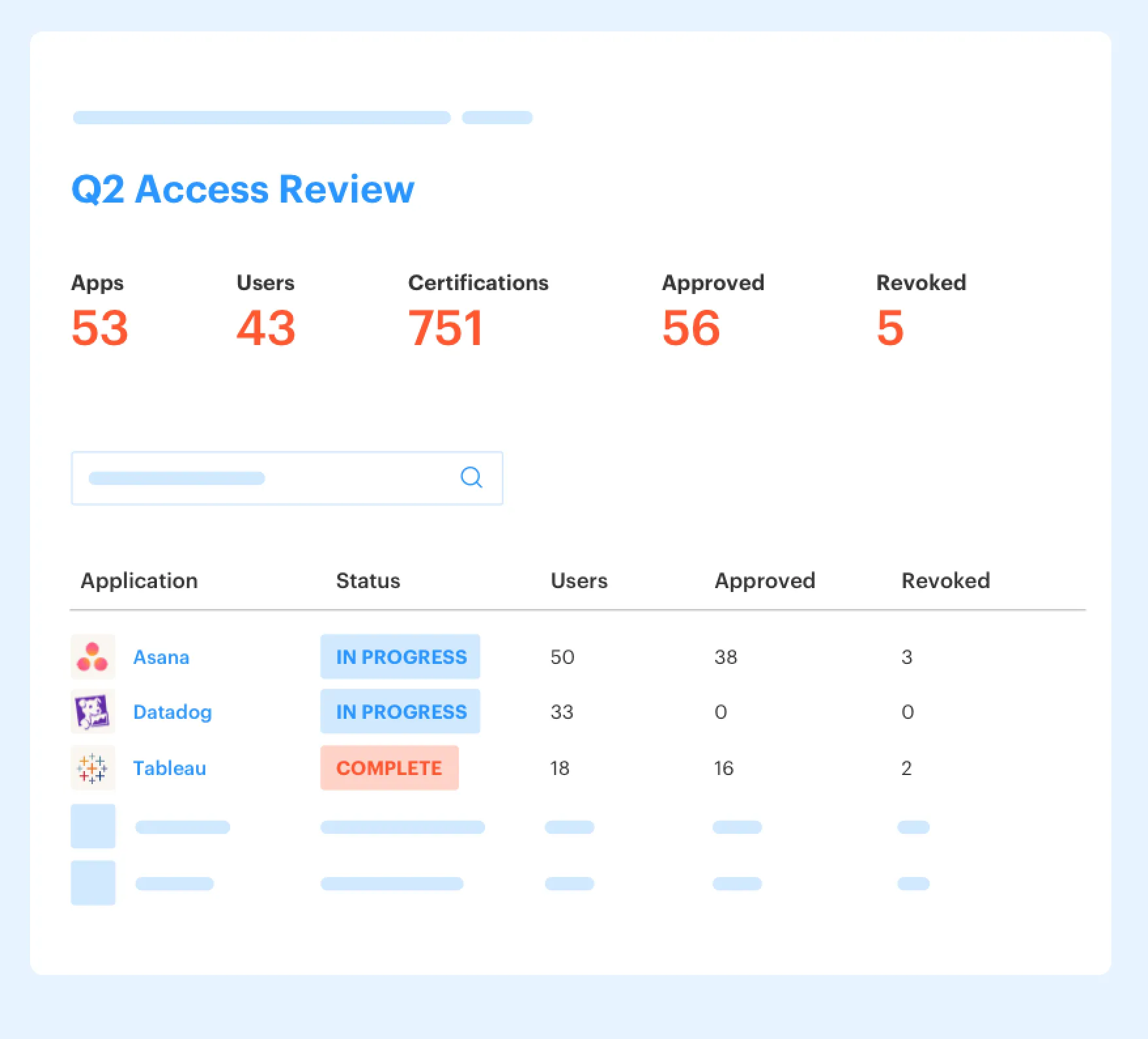
Access Reviews run in JSM with user details, group memberships, last-login context, and Keep or Revoke decisions. Revocations can remove users from relevant identity provider groups and create Jira evidence, while review results can be exported for auditors or sent to Vanta. One limitation matters: automated reminder and escalation support for access review campaigns is planned, so I wouldn’t describe the current review feature as a full reminder engine.
That limitation actually sharpens the point. Automated reminders are useful, but enforced expiry and recorded revocation carry more weight. If you want to build around those controls rather than another follow-up queue, Get started with Multiplier and map one app request from intake through expiry.
Build Reminders Around the Decision, Not the Ping
Good automated reminders tell the right person that a specific decision is waiting. Better workflows also define what happens when that person doesn’t respond. They escalate, close, reassign, or enforce expiry based on risk.
Start with one access request type. Keep it in Jira, assign a named approver, set no more than two follow-ups, and define the fallback. Once the decision and identity change share the same record, the reminder becomes what it should have been all along: a prompt, not the control.
Frequently asked questions
- How do I set up automated reminders in Multiplier?
To set up automated reminders in Multiplier, start by defining your workflow states in Jira.
- Identify the key statuses where approvals are needed, such as 'Waiting for Approval'.
- Set up triggers for reminders based on these statuses, ensuring they are linked to specific actions, like sending a reminder after four business hours if no decision is made.
- Limit reminders to two before escalating or closing the request to maintain efficiency.
- What if approvers miss their reminders?
If approvers miss their reminders, you can escalate the request effectively.
- After sending two reminders, configure Multiplier to automatically escalate the request to a designated backup approver or close it based on your policy.
- Ensure that the escalation process is clear, so approvers know what to expect if they don't respond.
- This approach helps prevent bottlenecks and keeps the onboarding process moving smoothly, ensuring that access requests are handled promptly.
- Can I track access requests in Multiplier?
Yes, you can track access requests in Multiplier through Jira. Each request submitted via the Application Catalog creates a Jira ticket that logs all actions taken.
- When an employee requests access, the ticket captures details like the app, role, and approval status.
- Approvals and provisioning actions are recorded in the same ticket, providing a complete audit trail.
- This centralized tracking helps ensure compliance and makes it easier to manage access across your organization.
- When should I use time-based access with Multiplier?
You should use time-based access when granting elevated permissions for a limited duration.
- During the request process, allow users to select a specific time frame for access, such as 1, 6, or 24 hours.
- Once approved, Multiplier automatically provisions access and sets a timer to revoke it when the time expires.
- This helps minimize security risks by ensuring that users only have access when they need it, reducing the chance of long-lived privileges.
- Why does Multiplier integrate with identity providers?
Multiplier integrates with identity providers like Okta and Azure AD to streamline access management.
- This integration allows for automated provisioning, meaning that once a request is approved, users are added to the correct groups without manual intervention.
- It ensures that access changes are reflected in real-time, maintaining accurate records in Jira.
- This setup reduces errors and saves time for IT teams by eliminating the need for manual updates across multiple systems.
Frequently Asked Questions
How do I set up automated reminders in Multiplier?
To set up automated reminders in Multiplier, start by defining your workflow states in Jira.
- Identify the key statuses where approvals are needed, such as 'Waiting for Approval'.
- Set up triggers for reminders based on these statuses, ensuring they are linked to specific actions, like sending a reminder after four business hours if no decision is made.
- Limit reminders to two before escalating or closing the request to maintain efficiency.
What if approvers miss their reminders?
If approvers miss their reminders, you can escalate the request effectively.
- After sending two reminders, configure Multiplier to automatically escalate the request to a designated backup approver or close it based on your policy.
- Ensure that the escalation process is clear, so approvers know what to expect if they don't respond.
- This approach helps prevent bottlenecks and keeps the onboarding process moving smoothly, ensuring that access requests are handled promptly.
Can I track access requests in Multiplier?
Yes, you can track access requests in Multiplier through Jira. Each request submitted via the Application Catalog creates a Jira ticket that logs all actions taken.
- When an employee requests access, the ticket captures details like the app, role, and approval status.
- Approvals and provisioning actions are recorded in the same ticket, providing a complete audit trail.
- This centralized tracking helps ensure compliance and makes it easier to manage access across your organization.
When should I use time-based access with Multiplier?
You should use time-based access when granting elevated permissions for a limited duration.
- During the request process, allow users to select a specific time frame for access, such as 1, 6, or 24 hours.
- Once approved, Multiplier automatically provisions access and sets a timer to revoke it when the time expires.
- This helps minimize security risks by ensuring that users only have access when they need it, reducing the chance of long-lived privileges.
Why does Multiplier integrate with identity providers?
Multiplier integrates with identity providers like Okta and Azure AD to streamline access management.
- This integration allows for automated provisioning, meaning that once a request is approved, users are added to the correct groups without manual intervention.
- It ensures that access changes are reflected in real-time, maintaining accurate records in Jira.
- This setup reduces errors and saves time for IT teams by eliminating the need for manual updates across multiple systems.


