


3,800 access requests sounds like a staffing problem. One four-person IT team automated 75% of them while supporting more than 420 employees.
The better question is: how do integrations with Jira, Slack, and your identity provider turn a request into real access without IT touching every ticket? Connecting the tools isn't enough. The approval needs to trigger the correct group change, set an expiry when needed, and write the evidence back to Jira.
Key Takeaways:
- Keep Jira as the record for requests, approvals, changes, and evidence.
- Provision access through identity provider groups instead of manual app updates.
- Separate low-risk requests from access that needs human approval.
- Make elevated access expire automatically after 1, 6, or 24 hours.
- Test failed provisioning and revocation, not just successful requests.
- Track automation by completed requests, not tickets created.
Why Separate Access Systems Create More Manual Work
Separate systems create manual work because each tool owns one fragment of the access request. Jira captures the ticket, Slack carries the approval, and the identity provider controls the actual entitlement. Unless those steps write back to one record, IT becomes the integration layer. That's the part nobody budgeted for, and it's the part that eats the week.

The Ticket Is Not the Workflow
At 9:15 on Monday, an employee requests Figma access in Jira. Their manager taps approve in Slack, then someone in IT opens Okta, hunts down the right group, adds the user, and drops a comment on the ticket. The request looked automated because a Jira issue existed. In practice, a person still carried the work through every step that mattered.
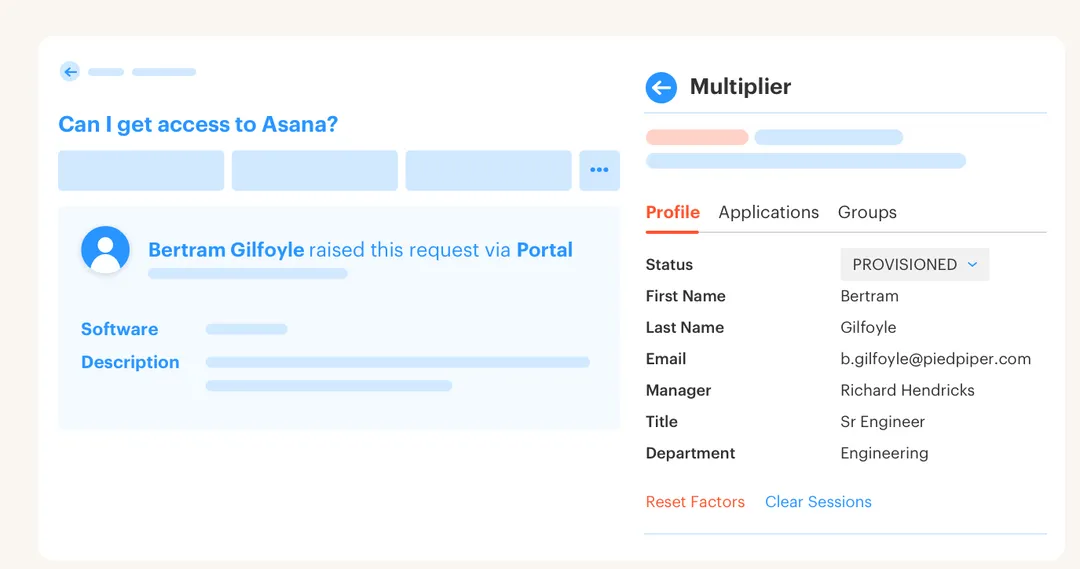
A fintech company with nearly 1,200 employees hit exactly that wall. Hundreds of routine requests arrived through Slack, email, and Jira, while IT chased approvals and hand-assigned Okta groups. Individual requests took 5 to 30 minutes each, which doesn't sound like much until you multiply it by a queue that never empties. Once the request, approval, and group assignment became one connected flow, IT workload tied to access requests dropped by 80%.
Portal Separation Breaks the Audit Chain
Would a dedicated governance tool solve this? For a very large company with complex requirements, a separate IGA portal can make real sense. That's a fair call. If employees still start in Jira and approvers still work in Slack, though, the portal adds another handoff rather than removing one.

A Jira issue should work like a transaction log for access. When the approval lives in Slack and the group change lives in Okta without writing back, it's like a database transaction with half the commits missing. The process may finish, but you can't prove the final state. That single-record thinking is what drives the Jira-native access walkthrough, because requests, group changes, and evidence can't be treated as separate projects.
Standing Access Is an Integration Failure
Long-lived access often gets blamed on weak policy. More often, the policy exists, but the integration can't enforce it. Someone grants an admin role for an incident, closes the Jira ticket, and plans to remove access on Friday. Friday gets busy. The access survives for another month, and now it's an audit finding waiting to happen.
Training won't fix that pattern. An access integration should carry duration as part of the request, start the timer when the identity provider group is assigned, then strip membership when time expires. Without that loop, least privilege depends on someone remembering cleanup. The better design starts by deciding which system owns every action.
How Jira, Slack, and Identity Provider Integrations Should Work
Jira, Slack, and identity provider integrations should work as one controlled request path. Jira owns the record, Slack speeds up the decision, and the identity provider executes the entitlement change. Each handoff should update the same ticket so failure, expiry, and revocation stay visible instead of hiding in three different tools.
Diagnose Where Your Current Flow Actually Breaks
Four questions usually expose the weak point. Can an employee request the correct role without asking IT which group they need? Does approval trigger the identity provider change automatically? Can temporary access remove itself? Does Jira show what changed without someone pasting in a screenshot?
Write down the honest answers. I've watched teams call a process automated because Slack sends the approver a message, even though IT still handles provisioning and cleanup by hand. That's notification automation. Useful, sure, but it doesn't touch the work that creates the delays and the mistakes.
Check these signals before you buy or build anything:
- More than one channel can start an access request.
- IT translates app roles into group names by hand.
- Approval doesn't trigger provisioning.
- Temporary access relies on calendar reminders.
- Audit evidence gets rebuilt from screenshots.
Three or more signals means the problem sits in the full workflow, not the ticket form. If you count fewer than three, your bottleneck is probably policy, not plumbing, and a new integration won't save you.
Map Every Role to an Authoritative Group
The identity provider should stay authoritative for group membership. A request for Figma Editor, for instance, maps to a defined Okta, Entra ID, or Google Workspace group. Once approval happens, the integration adds the requester to that group. For SSO applications, downstream access follows the identity provider configuration.
Mapping roles sounds basic. It isn't. If IT maintains one role list in Jira and another inside the identity provider, they drift apart within a quarter, and drift is how people end up in groups nobody can explain. The safest setup uses one mapping per catalog role and treats an unmapped role as a failed configuration, not something an admin should improvise later.
Build the path in this order:
- Define the user-facing application role.
- Map that role to one or more identity provider groups.
- Set the approval rule for the role.
- Trigger the group assignment only after approval.
- Write success or failure back to the Jira issue.
If step five is missing, you have automation without proof.
Match Approval Depth to Access Risk
Low-risk access shouldn't follow the same path as production admin access. A standard app role may be auto-approved based on policy, while an elevated role goes to the app owner or the requester's manager. The Slack integration can shorten the wait by putting Approve and Deny actions where managers already spend their day.
Auto-approval has a real downside. Applied too broadly, it trades IT speed for unnecessary privilege, and that's a bad trade the day a breach investigation starts. The answer isn't jamming a human into every request. Use human judgment where access carries real risk, then automate the rest of the path after that decision lands.
For each role, document:
- Whether approval is required.
- Who can approve it.
- Whether access should expire.
- Which identity provider groups will change.
- What Jira status triggers provisioning.
That access-to-group logic is easier to validate when you can see the connected request flow rather than reviewing Jira, Slack, and identity settings in isolation.
Make Elevated Access Temporary by Default
Temporary access should carry its expiry from the original request. An engineer selects production access for one hour, the approver reviews that duration, and the identity provider group assignment starts the timer. When the hour ends, the integration removes the membership and records the revocation.
Don't treat expiry as a second workflow. That's exactly where cleanup fails. The grant and removal should be two halves of the same request, sharing the same role mapping and Jira issue. In my view, that's the difference between writing a least privilege policy and actually running one.
A practical temporary access flow looks like this:
- The requester chooses a role and duration, such as 1, 6, or 24 hours.
- The approver sees both the entitlement and the requested window.
- Approval adds the user to the mapped identity provider group.
- A timer starts from the successful group assignment.
- Expiry removes the group membership and updates Jira.
Here's the honest limit: automatic removal only works for access controlled through the identity provider. Manual grants inside non-SSO applications still need a manual revocation path. That's a real gap, and it should be visible before rollout, not discovered during an audit.
Write Evidence to the Original Jira Issue
Audit evidence should be produced during the request, not assembled three months later under pressure. The Jira issue needs to show who requested access, who approved it, what group changed, whether provisioning worked, and when the entitlement ended. One record. Full chain.
Picture the alternative during an access review. The reviewer sees an approved Jira issue but can't confirm whether the group assignment happened, or whether temporary access ever expired. Someone opens the identity provider, searches Slack, pings the app owner. The integration technically completed the request, but the missing write-back turned a five-minute check into an afternoon of manual research.
Access reviews also need execution, not just decisions. If a reviewer marks Revoke, the useful workflow removes the relevant group membership and records that action. A spreadsheet full of “Revoke” isn't enforcement. It's a to-do list for IT.
Test Failure Paths Before You Scale
Successful requests prove almost nothing. You need to know what happens when the identity provider rejects an API call, a role has no mapped group, the approver is missing, or revocation fails. Those are the requests that turn into invisible standing access when nobody owns the exception.
Run ten controlled requests before you open the catalog broadly. Use two low-risk roles, two approval paths, one temporary entitlement, and at least one forced failure. Frankly, that forced failure tells you more than the nine successes combined. It shows whether the Jira issue exposes the error clearly enough for IT to retry or correct it.
Your test should confirm four outcomes:
- Approval updates the correct Jira status.
- Provisioning changes the expected identity provider group.
- Expiry removes the same membership.
- Every success and failure appears on the originating issue.
Start with five to ten common applications rather than the whole SaaS estate. A smaller catalog gives IT room to correct mappings before request volume rises. Once those paths hold, expanding becomes configuration work instead of repeated workflow design.
How Multiplier Automates Provisioning and Expiry
So how do integrations with your identity stack actually execute this in practice? Multiplier connects JSM requests and Slack approvals to group changes in Okta, Microsoft Entra ID, or Google Workspace. Approved roles map to identity provider groups, while time-based requests start an expiry timer that removes access later. Each action writes back to the originating Jira issue.
Group-Based Provisioning Removes the Admin Handoff
Employees use Multiplier's Application Catalog inside JSM to select a sanctioned app and role. Each role maps to one or more identity provider groups. When the Jira issue reaches the configured Approved status, Multiplier calls the identity provider API and updates the issue with the outcome.

Provisioning happens through identity provider groups. Multiplier doesn't directly automate changes inside individual SaaS applications that aren't connected through that identity path. Still, the group-based model removes the manual Okta, Entra ID, or Google Workspace update for supported access and keeps the authoritative entitlement in the identity provider.
Slack Approval and Timed Revocation Close the Loop
Approvers can act from Jira or Slack, while the Jira issue remains the system of record. For time-based access, the requester chooses a duration such as 1, 6, or 24 hours. After approval, Multiplier adds the mapped group membership, starts the timer, then removes membership when the window expires.
The same model addresses the work you see in high-volume IT queues. Instead of an admin handling the request, chasing the manager, changing a group, and circling back later for cleanup, the workflow executes those actions around the approval decision. If you want to apply that model to your own JSM and identity stack, Get started with Multiplier and map one common request from intake through expiry.
What Connected Access Governance Changes for IT
Good access integrations reduce work by connecting the request to the actual entitlement change. Jira holds the record, Slack carries the decision, and the identity provider stays authoritative for access. Temporary roles expire because the workflow enforces removal, not because an admin remembered a calendar reminder at 4:55 on a Friday.
Start with one high-volume application and one elevated role. Map the groups, set the approval rule, test a failed request, then confirm the Jira record tells the whole story on its own. Once that works, automation can grow without weakening control. That's the real payoff: not fewer tickets, but access you can actually prove.
Frequently asked questions
- How do I set up time-based access with Multiplier?
To set up time-based access using Multiplier, here's how: 1) When submitting a request through the Application Catalog in Jira Service Management or Slack, select the role you need and choose a duration (like 1, 6, or 24 hours). 2) Once approved, Multiplier will provision access and start a timer for the specified duration. 3) After the time expires, Multiplier automatically removes your access from the mapped identity provider group, ensuring you don’t retain unnecessary privileges. This process helps enforce least privilege effectively.
- What if I need to approve access requests quickly?
If you need to approve access requests quickly, you can use the Slack integration with Multiplier. When a request is made, approvers receive a direct message in Slack with options to approve or deny the request with just one click. This speeds up the decision-making process without needing to switch between applications. Additionally, you can set up auto-approval for low-risk roles based on your organization’s policies, allowing for even faster processing of requests.
- How do I ensure audit trails are maintained?
To ensure audit trails are maintained, use Multiplier to manage all access requests through Jira Service Management. Each request, approval, and change is logged in the Jira ticket, creating a complete record. Make sure to configure the system so that every action, including role assignments and revocations, writes back to the original Jira issue. This way, you’ll have all the necessary evidence documented for audits, eliminating the need for manual tracking or screenshots.
- Can I customize the approval workflow in Multiplier?
Yes, you can customize the approval workflow in Multiplier. Admins can map workflow statuses to define who the approvers are for each application, whether that’s the app owner, the requester's manager, or a specific user. You can also set default approvers globally or override them on a per-app basis. This flexibility allows you to tailor the approval process to fit your organization's specific needs, ensuring that the right people are involved in each decision.
- When should I use the Application Catalog for access requests?
You should use the Application Catalog for access requests whenever you want to streamline the process for employees. It allows users to browse sanctioned applications and select the appropriate roles directly from Jira Service Management or Slack. This centralized approach ensures that requests are made with the right context upfront, reducing confusion and manual effort for IT. It’s particularly useful during onboarding or when employees need quick access to tools without navigating multiple channels.
Frequently Asked Questions
How do I set up time-based access with Multiplier?
To set up time-based access using Multiplier, here's how: 1) When submitting a request through the Application Catalog in Jira Service Management or Slack, select the role you need and choose a duration (like 1, 6, or 24 hours). 2) Once approved, Multiplier will provision access and start a timer for the specified duration. 3) After the time expires, Multiplier automatically removes your access from the mapped identity provider group, ensuring you don’t retain unnecessary privileges. This process helps enforce least privilege effectively.
What if I need to approve access requests quickly?
If you need to approve access requests quickly, you can use the Slack integration with Multiplier. When a request is made, approvers receive a direct message in Slack with options to approve or deny the request with just one click. This speeds up the decision-making process without needing to switch between applications. Additionally, you can set up auto-approval for low-risk roles based on your organization’s policies, allowing for even faster processing of requests.
How do I ensure audit trails are maintained?
To ensure audit trails are maintained, use Multiplier to manage all access requests through Jira Service Management. Each request, approval, and change is logged in the Jira ticket, creating a complete record. Make sure to configure the system so that every action, including role assignments and revocations, writes back to the original Jira issue. This way, you’ll have all the necessary evidence documented for audits, eliminating the need for manual tracking or screenshots.
Can I customize the approval workflow in Multiplier?
Yes, you can customize the approval workflow in Multiplier. Admins can map workflow statuses to define who the approvers are for each application, whether that’s the app owner, the requester's manager, or a specific user. You can also set default approvers globally or override them on a per-app basis. This flexibility allows you to tailor the approval process to fit your organization's specific needs, ensuring that the right people are involved in each decision.
When should I use the Application Catalog for access requests?
You should use the Application Catalog for access requests whenever you want to streamline the process for employees. It allows users to browse sanctioned applications and select the appropriate roles directly from Jira Service Management or Slack. This centralized approach ensures that requests are made with the right context upfront, reducing confusion and manual effort for IT. It’s particularly useful during onboarding or when employees need quick access to tools without navigating multiple channels.


