

You approved temporary production access this week. The Jira ticket closed in 12 minutes, but the group membership had no expiry. By Friday, nobody could say whether the access was still needed.
Fast access isn't the enemy. The mistake is aligning IAM to a control document while employee work happens in Jira and Slack. If you want to align IAM with employee workflows, the grant and the cleanup need to be part of the same request.
Key Takeaways:
- Keep access requests, approvals, expiry, and evidence in one workflow.
- Default elevated access to a fixed duration instead of standing privilege.
- Let employees request access through Jira or Slack, where they already work.
- Execute grants and revocations through your identity provider.
- Treat audit evidence as an output of normal access work, not a quarterly project.
Why IAM and Employee Workflows Drift Apart
IAM and employee workflows drift apart when the request, approval, grant, and expiry live in different systems. Jira records the request, Slack captures the decision, the identity provider executes the change, and a spreadsheet holds the audit notes. Each handoff removes context, which is why temporary access so often turns into standing access.

The Ticket Can Close While Access Stays Open
Take a common incident. At 2:15 p.m., an engineer requests production access in Slack for a six-hour maintenance window. Their manager approves, IT adds the right identity provider group, and the Jira ticket gets closed. Six hours later, the work is done, but the group membership stays active because expiry wasn't part of the original flow.
The visible work looked successful. Access arrived fast, the engineer finished the job, and the queue moved along. Yet the security outcome was broken because the grant had no enforced end state. Closing a ticket measures service delivery. It doesn't prove least privilege.
Separate Portals Create a Reconciliation Job
A separate IGA portal can offer deep policy controls, and for some large companies, that complexity is justified. The downside is that employees still tend to start in Jira or Slack. IT then becomes the bridge between the employee workflow, the governance portal, and the identity provider. You're not removing work. You're turning access management into reconciliation.

A fintech company with nearly 1,200 employees saw hundreds of routine access requests arrive through Slack, email, and Jira. Each request took 5 to 30 minutes because IT had to chase approvals and assign Okta groups manually. After bringing the workflow into Jira and Slack, the company reduced IT workload from access requests by 80%. The policy didn't change much. The execution path did.
If that Jira-centered request path is what you're trying to build, you can review the Jira-native access flow without adding another employee portal.
Audit Evidence Should Come From Normal Work
Audit preparation becomes painful when evidence is reconstructed after the access change. The approval lives in Slack, the grant appears in the identity provider, and the revocation might exist only as another ticket. Someone then spends days matching timestamps and taking screenshots. It's like reconciling four ledgers for one transaction, except every ledger uses a different reference number.
In my view, audits should be ready by design in Jira. Every request should show who asked, who approved, what changed, and when access ended. When those facts are produced during the workflow, an audit becomes a review of completed work. Without that connection, every quarter starts with the same question: can we prove the control actually ran?
How to Align IAM With Employee Access Needs
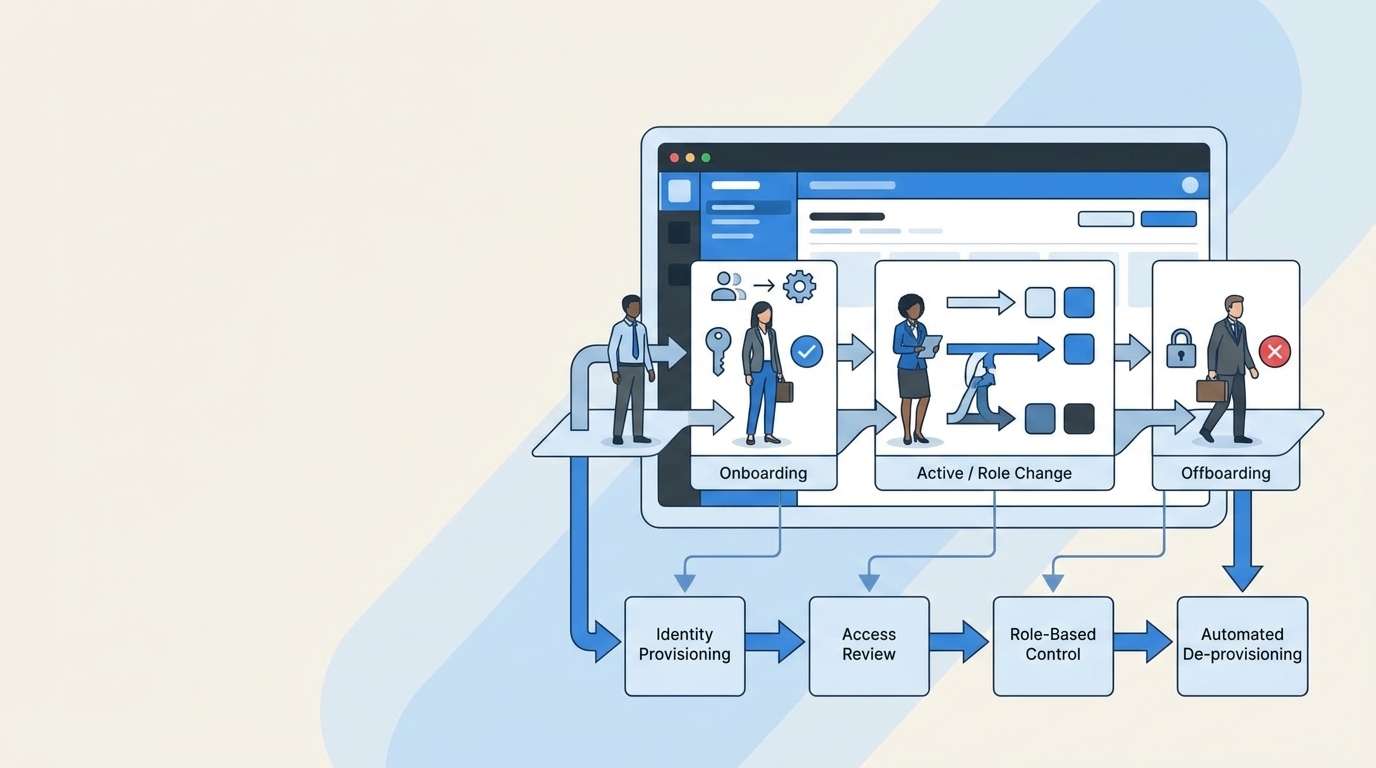
You align IAM with employee access needs by designing one workflow around five states: requested, approved, granted, expired, and evidenced. Employees should interact through familiar tools, while the identity provider remains authoritative. The key is connecting those states so a fast approval can't bypass duration, revocation, or proof.
Diagnose Where Employee Access Loses Context
Where does your access context disappear today? Start with one common request, such as GitHub admin, production access, or a paid design license. Follow it from the employee's first message through final revocation. Don't start by reading the policy. Watch the actual work.
The gap usually appears at a handoff. Maybe the Jira issue doesn't contain the requested role. Maybe approval happens in a Slack thread that isn't tied to the ticket. Maybe the identity provider change runs correctly, but nobody records the expiry. You can find the weak point with five questions:
- Can the requester choose a specific role and duration?
- Is the approver recorded on the same request?
- Does approval trigger a defined identity provider change?
- Is revocation scheduled when access is granted?
- Can an auditor trace every state without asking for screenshots?
Three or more “no” answers mean the workflow isn't really connected. Fix the first broken handoff before adding more policy.
Define Access by Role, Risk, and Duration
Broad access names create broad access. “GitHub access” might mean read-only access to one repository, write access to several repositories, or organization admin. If the request doesn't capture the role, the approver can't judge the real risk. IT then fills in the blanks, usually under time pressure.
Duration needs the same treatment. A permanent Figma Viewer role may be reasonable for a designer. Production admin for an incident should expire in hours. The approach I prefer is pretty direct:
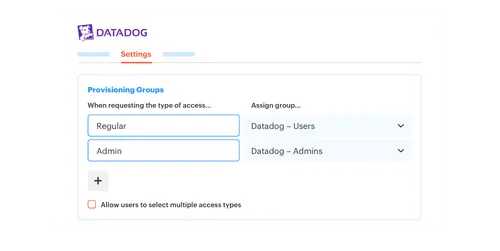
- Map each requestable role to a specific identity provider group.
- Classify the role as standard, sensitive, or privileged.
- Set a default duration based on that risk.
- Require an owner to approve exceptions from the default.
- Record the final duration on the originating ticket.
If a role has no clear group mapping, don't automate it yet. Keep the request in Jira and provision it manually until the execution path is reliable. A tracked manual grant is better than a fast grant you can't reverse.
Put Requests Where Employees Already Work
An employee who needs access shouldn't have to know which system owns identity governance. They know the app they need, the role they want, and why they need it. Jira or Slack can collect that context and create the record. The employee experience stays simple, while the governance work happens behind it.
A good request form asks for only the fields needed to make a decision. App, role, duration, and reason will cover a large share of access requests. Higher-risk access can ask for more context, while routine roles can move through a shorter path. If employees keep bypassing the catalog and sending Slack messages, the form is probably asking too much or hiding the apps they actually use.
Some Slack experiences won't support every option available in a full Jira portal. That's a fair limitation. Use Slack for common requests and approvals, then send edge cases to the Jira form. To see how those two entry points can share one ticket, look at the connected request workflow.
Make the Identity Provider the Execution Layer
One authoritative execution path is enough. Jira should hold the request and decision, while Okta, Entra ID, or Google Workspace applies the actual group change. That separation matters because the service desk knows why access changed. The identity provider knows what access the employee currently has.
Direct changes inside individual SaaS apps are harder to track and reverse. Group-based provisioning gives you a repeatable action, especially where SAML or SCIM carries the group assignment into the application. If an application can't use identity provider groups, keep the approval record in Jira and mark the provisioning step as manual. Don't pretend partial automation is complete automation.
Use the same sequence every time:
- Create the Jira request with role and duration.
- Route approval to the manager or app owner.
- Add the user to the mapped identity provider group.
- Write success or failure back to the Jira issue.
- Remove the group membership when access ends.
That sequence gives you one record for intent and one authoritative system for execution. No guessing.
Treat Expiry as Part of the Original Grant
A six-hour grant should carry its own six-hour removal. Scheduling revocation later means relying on memory, calendar reminders, or a cleanup queue. All three fail when the team gets busy. Expiry belongs in the grant because the security decision includes both when access starts and when it stops.
Time-based access has a real tradeoff. If every duration is too short, employees keep filing extension requests during active work, which creates friction and pushes people toward broader standing access. Match the default window to the task. Use hours for incident work, days for short projects, and permanent access only where the job requires it.
A 160-person fintech company took this approach after long-lived privileged access became a concern. By moving elevated roles to just-in-time requests with enforced expiry, it cut privileged access by 85%. The important part wasn't asking people to remember least privilege. The workflow made least privilege the default outcome.
Build Audit Evidence Into Every State Change
Audit evidence is strongest when it comes from the same workflow that executed the change. A separate evidence spreadsheet can say an access review happened, but it can't enforce the revocation. A Jira issue tied to the identity provider action can show the decision and the resulting change. That's a much cleaner chain.
Record the fields an auditor will ask for while the request moves. Who requested access? Which role and application were involved? Who approved it, when was it granted, and when did it end? Capturing those answers during the workflow removes the quarterly hunt for proof.
The minimum evidence set is straightforward:
- Requester, application, and requested role
- Business reason and requested duration
- Approver identity and decision timestamp
- Provisioning status from the identity provider
- Expiry or revocation timestamp
- Errors, exceptions, and retry history
Access reviews should follow the same rule. Reviewers need user context, group membership, and recent usage where available. A “Revoke” decision should lead to an actual group removal, not another spreadsheet cell someone has to process later.
How Multiplier Connects Jira Access to Automatic Revocation
Multiplier puts that workflow inside Jira Service Management and Slack, then executes approved changes through Okta, Entra ID, or Google Workspace groups. Requests stay tied to the Jira issue, and time-based access carries its own expiry. You get a faster employee path without separating access governance from the service desk.
Jira-Native Requests Keep Evidence Attached
Multiplier's Application Catalog gives employees a list of approved applications inside JSM, with requestable roles mapped to identity provider groups. Employees can also start common requests through the Slack app. Each submission creates a Jira issue, and approvers can act through JSM or Slack. The request, decision, and status stay attached to one record.
Once the Jira issue reaches the configured approved status, group-based provisioning can add the employee to the mapped identity provider group. Success or failure gets written back to Jira. Slack doesn't support every portal option, and provisioning depends on supported identity provider group mappings. Those boundaries matter, because accurate automation is better than claiming every app works the same way.
Time-Based Access Makes Revocation the Default
Multiplier lets requesters choose a defined access duration, such as 1, 6, or 24 hours. After approval, the user is added to the mapped group and the timer starts. At expiry, the group membership is removed and the change is recorded in Jira. Automatic revocation applies when access was provisioned through identity provider groups, not when someone granted access manually inside an app.

Access Reviews can also run inside JSM, with reviewer context such as group membership and last login. Reviewers choose Keep or Revoke, and revocations can remove the relevant identity provider groups while creating the supporting Jira record. Together, the workflow covers three jobs:
- Request and approve: Employees and approvers work through JSM or Slack.
- Grant and expire: Identity provider groups apply access and remove it at expiry.
- Review and prove: Jira records decisions, changes, and review outcomes.
If you want the grant and revocation to operate as one Jira workflow, get started with Multiplier.
Keep Employee Access Fast Without Making It Permanent
Fast employee access and least privilege don't need to fight each other. The workflow has to collect the right role, route the decision, execute through the identity provider, and enforce the end date. When all of that stays connected to Jira, audit evidence comes from the work instead of being rebuilt later.
I'd start with one high-volume application and one privileged role. Map the groups, define the approval path, add duration, and verify that revocation writes back to the ticket. Once that flow works, expand it. The goal isn't more IAM policy. It's making the secure access path easier to follow.
Frequently asked questions
- How do I set up time-based access with Multiplier?
To set up time-based access using Multiplier, follow these steps: 1) When submitting an access request through the JSM portal or Slack, choose a duration for the access (like 1, 6, or 24 hours). 2) After approval, Multiplier will automatically provision the access and start the timer. 3) Once the time expires, Multiplier will automatically remove the user from the mapped identity provider group. This making sure access is granted only for the necessary time, reducing the risk of overprovisioning.
- What if I need to request access for an app not in the catalog?
If you need access to an app not listed in the Multiplier Application Catalog, you can still submit a request. Here’s how: 1) Use the 'Other' option in the catalog to request an app that isn't visible. 2) Provide the necessary details, such as the app name, desired role, and reason for access. 3) This will create a Jira ticket for your request, which will be routed for approval. The IT team can then review and handle the request accordingly.
- Can I automate access reviews with Multiplier?
Yes, you can automate access reviews using Multiplier. To do this: 1) Create an access review campaign within Jira by selecting the applications you want to include. 2) Assign reviewers who will evaluate the access for users associated with those applications. 3) Once the campaign is launched, reviewers can easily mark access as 'Keep' or 'Revoke' based on user activity, and Multiplier will automatically document the changes in Jira. This streamlines the review process and making sure access is properly managed.
- When should I use Slack for access requests?
You should use Slack for access requests when you want to streamline the process and reduce context switching. Here’s how: 1) Employees can trigger access requests directly in Slack using the /request command, making it quick and easy. 2) The same application catalog from JSM is available in Slack, allowing users to select apps and roles. 3) This integration making sure requests are logged as Jira tickets, maintaining a complete audit trail while keeping the workflow efficient.
Frequently Asked Questions
How do I set up time-based access with Multiplier?
To set up time-based access using Multiplier, follow these steps: 1) When submitting an access request through the JSM portal or Slack, choose a duration for the access (like 1, 6, or 24 hours). 2) After approval, Multiplier will automatically provision the access and start the timer. 3) Once the time expires, Multiplier will automatically remove the user from the mapped identity provider group. This making sure access is granted only for the necessary time, reducing the risk of overprovisioning.
What if I need to request access for an app not in the catalog?
If you need access to an app not listed in the Multiplier Application Catalog, you can still submit a request. Here’s how: 1) Use the 'Other' option in the catalog to request an app that isn't visible. 2) Provide the necessary details, such as the app name, desired role, and reason for access. 3) This will create a Jira ticket for your request, which will be routed for approval. The IT team can then review and handle the request accordingly.
Can I automate access reviews with Multiplier?
Yes, you can automate access reviews using Multiplier. To do this: 1) Create an access review campaign within Jira by selecting the applications you want to include. 2) Assign reviewers who will evaluate the access for users associated with those applications. 3) Once the campaign is launched, reviewers can easily mark access as 'Keep' or 'Revoke' based on user activity, and Multiplier will automatically document the changes in Jira. This streamlines the review process and making sure access is properly managed.
When should I use Slack for access requests?
You should use Slack for access requests when you want to streamline the process and reduce context switching. Here’s how: 1) Employees can trigger access requests directly in Slack using the /request command, making it quick and easy. 2) The same application catalog from JSM is available in Slack, allowing users to select apps and roles. 3) This integration making sure requests are logged as Jira tickets, maintaining a complete audit trail while keeping the workflow efficient.


