


By lunch, one access request has already touched Jira, Slack, and Okta. You can connect IDPs with service management and still leave the actual work split across three places. The Jira issue says one thing. The Slack thread says another. And the group assignment in your identity provider becomes the only record that reflects what actually happened.
That split feels manageable when request volume is low. Then your company hires 50 people, adds another compliance framework, or asks IT to prove who approved production access six months ago. Suddenly, connecting IDPs with service management isn't an integration project. It's an operating model decision.
Key Takeaways:
- Connect IDPs with service workflows, not just request forms.
- Make the identity provider the execution layer for every supported access change.
- Keep requests, approvals, provisioning status, and evidence tied to one Jira issue.
- Map roles to IDP groups before automating approvals.
- Use Slack for decisions, while keeping Jira as the system of record.
- Put an expiry on elevated access and automate revocation through group membership.
Why the IDP-Service Desk Split Breaks Access Governance
The IDP-service desk split breaks governance because the request and the access change live in different systems. Jira captures intent, while Okta, Entra ID, or Google Workspace holds the actual entitlement. Unless those records stay connected, IT has to reconcile them manually during support work, access reviews, and audits.

A completed Jira ticket can still hide unfinished work
A workplace technology manager opens a Jira request at 10:12 a.m. The manager approved it in Slack, so the ticket gets moved to Done. IT still needs to open the identity provider, find the right group, add the employee, and paste a confirmation back into Jira. One interrupted admin later, the ticket says complete while the user still has no access.
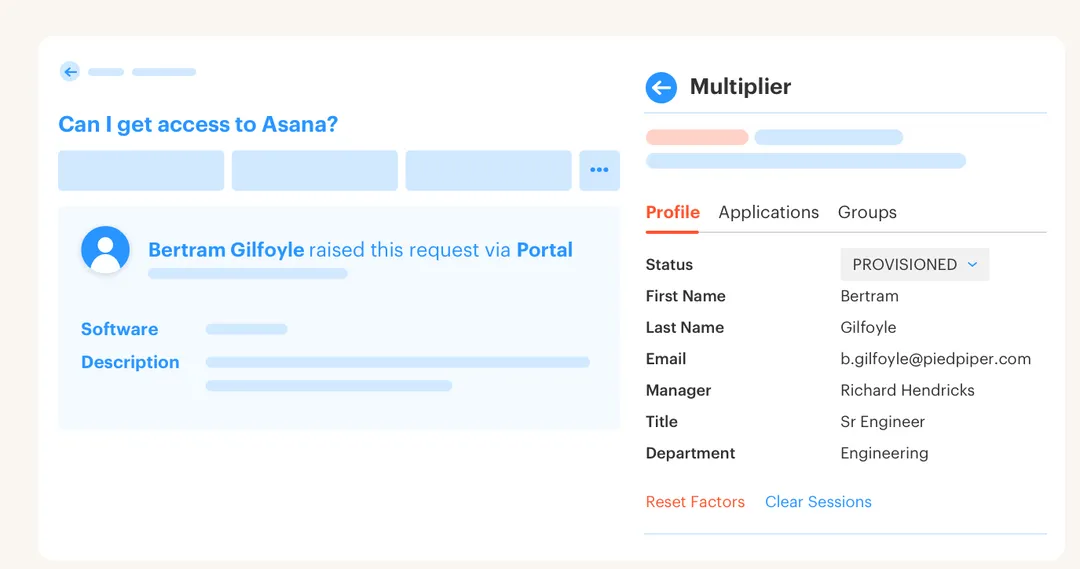
Or the reverse happens. Access gets provisioned, but nobody updates the issue. The employee is working, so the problem looks solved, yet the evidence is incomplete and the SLA is wrong. Come audit time, someone compares Jira comments against IDP group membership and tries to explain the gap.
Think of the request and the group assignment as two sides of the same ledger. Recording them separately creates a reconciliation job every time you need proof. If the service workflow triggers the IDP change and records its status, the ledger stays balanced as part of normal work.
A separate IGA portal can make sense for a large enterprise with complex controls across many systems. That's a fair reason these products exist. The problem starts when employees still request access in Jira and managers still approve in Slack, because the extra portal becomes another place IT has to keep current.
The practical version of that Jira-first model is covered in a Multiplier walkthrough, where the request stays tied to the identity change instead of creating another reconciliation step.
The audit gap begins when approval leaves the record
An approval without an executed change only proves someone said yes. It doesn't prove which group was assigned, when it happened, whether the action failed, or when temporary access ended. That distinction gets ignored during normal weeks because everyone is focused on getting the employee unblocked.

Audit week exposes it. The security team asks for approvals, IT exports tickets, and the identity team pulls current group membership. Screenshots get added to a spreadsheet because no single record connects the decision to the change. It's exhausting, frustrating rework, especially when the team followed the process and still can't produce clean evidence.
Here's a real number. One fintech company faced hundreds of routine requests across Slack, email, and Jira as it grew to nearly 1,200 employees. IT had to chase managers, open Okta, assign groups, and recreate the history for auditors. After moving request intake and IDP provisioning into the same Jira flow, the company reduced the IT workload tied to access requests by 80%.
The lesson isn't that Jira should replace your identity provider. It shouldn't. Jira should hold the work record, while the identity provider remains authoritative for access. When you connect IDPs with service workflows, each system owns the part it's actually good at, which is exactly the trace you'll want to test next.
How to Connect IDPs With Service Management
Connect IDPs with service management by mapping each Jira request to a defined identity action, approval path, and evidence record. The service desk should capture who needs what and why. The identity provider should execute the group change, then send the outcome back to the originating issue.
Can you trace one request from intake to revocation?
Can you take a completed Jira issue and trace the exact IDP change without opening another spreadsheet? If not, don't automate the workflow yet. Automation will make the gap move faster, which is impressive right up until an auditor asks what happened.
Start with one common request, such as Figma Editor or GitHub repository access. Follow it from submission through approval, provisioning, and eventual removal. Write down every place a person has to copy information, switch tools, or remember a follow-up. Frankly, that manual walk-through catches more design problems than a month of diagramming.
Use five questions to test the connection:
- What exact role is being requested? “Access to Salesforce” isn't specific enough if Viewer and Admin map to different risk levels.
- Which IDP group grants that role? One approved role should point to a known group or set of groups.
- Who can approve it? Pick the requester’s manager, the app owner, or a named approver.
- What confirms execution? The Jira issue needs a success or failure update from the identity action.
- How does access end? Define an expiry, an offboarding trigger, an access review decision, or a manual removal path.
If you can't answer all five from the ticket and its workflow configuration, the IDP-service connection isn't complete. You have request automation, not access governance.
Define roles before you automate group changes
A request form captures what an employee wants. A provisioning contract defines what the system will actually do. Connecting IDPs with service workflows requires the second one, because free-text requests can't reliably trigger group assignments.
Take a design app as an example. “Need design access” could mean Viewer, Editor, or Admin. Each role should map to a known identity provider group, and the request should collect the role before it reaches approval. Once approved, the workflow has a deterministic action instead of forcing IT to interpret the request.
The mapping should cover four elements:
- Application: The sanctioned tool being requested.
- Role: The access level the employee will receive.
- IDP group: The group membership that grants the entitlement.
- Removal rule: The event that ends access, such as expiry or offboarding.
Group mapping has a real limitation. It works when the application uses the identity provider for access, commonly through SSO and SCIM. A non-SSO application may still need manual provisioning, and pretending otherwise creates a false completion signal. Keep those requests in Jira for approval and evidence, but mark the provisioning step as manual.
Make the Jira status control the identity action
A fintech company with hundreds of monthly requests used to treat Jira, Slack, and Okta as separate stations. Managers approved the request, then IT completed the Okta group assignment by hand. Each request took 5 to 30 minutes, depending on whether the approver responded and whether the admin knew the right group.
Connecting the IDP with the service desk changed the sequence. The request created a Jira issue, the correct manager or app owner received the approval, and the approved status triggered the mapped group assignment. Jira then held the request, decision, and provisioning outcome. No copy and paste.
A clean request-to-access sequence looks like this:
- Create the Jira issue: Capture the employee, application, role, reason, and requested duration.
- Route the approval: Send it to the manager, app owner, or named approver based on the application.
- Move to Approved: Use the Jira workflow status as the trigger for the identity action.
- Update the IDP group: Add the employee to the group mapped to the selected role.
- Write back the outcome: Record success or failure on the same Jira issue.
- Remove access when required: Trigger removal through expiry, review decisions, or lifecycle changes.
Status design matters more than it looks. If “Approved” sometimes means approved and sometimes means manually completed, automation can't know what to execute. Separate the decision from the provisioning state, even if both steps happen within seconds.
That status-to-group chain is the part worth testing against a real request, and you can see how Multiplier works before you map the same transitions in your own Jira project.
Put approvals where managers already respond
Approval speed matters less than approval placement. Managers don't miss access requests because they enjoy creating IT backlogs. They miss them because the decision arrives in a portal they don't check during normal work.
Slack can solve the response problem, but only if the approval remains tied to Jira. A manager should receive the relevant request details, choose Approve or Deny, and have that choice update the originating issue. Slack is the interaction layer. Jira remains the record.
Auto approval is valid for low-risk, common access. It isn't a sensible default for production admin roles or sensitive datasets. The stronger model separates requests by risk, then applies less friction where the downside is limited and more control where the access can do real damage.
You can make that split practical:
- Auto approve low-risk roles when eligibility is clear.
- Require a manager for common paid applications.
- Route sensitive roles to an application owner or named security approver.
- Require a duration for elevated access.
- Keep every decision on the Jira issue, including denials.
A chat approval without a connected ticket is just a faster side channel. The speed is useful. The missing record isn't.
Make temporary access the normal path for elevated roles
One, 6, and 24 hours are often more useful access options than “permanent.” An engineer responding to an incident may need a production group now, but that doesn't mean the entitlement should survive the incident, the sprint, and the employee’s next role change.
Time-based access works when the approved Jira request adds the user to a mapped IDP group and starts an expiry timer. At the end of the window, the workflow removes the membership and records that removal. No cleanup ticket. No calendar reminder that somebody ignores during a busy week.
A fintech company used that model to reduce privileged access by 85%. More than 1,300 approved access requests were automatically revoked after their approved windows. The interesting part wasn't just faster provisioning. Security could grant access without accepting long-lived privilege as the cost of moving quickly.
Automatic expiry also has a boundary. Access granted manually outside the identity provider can't be reliably removed through an IDP group call. If elevated access can't be governed through group membership, document that exception and give it a separate removal control.
Treat evidence as an output of the workflow
Audit evidence should come from the same workflow that grants access. Building it later means reconstructing a story from tickets, group exports, Slack messages, and human memory. Even accurate evidence starts looking questionable when every request follows a different trail.
For each access change, the Jira issue should show the requester, role, approver, approval time, identity action, and final status. Temporary access should include the expiry and revocation. Access review decisions should create or update records that show what the reviewer chose and whether the IDP change happened.
A useful evidence check is simple: pick five recently closed requests and ask someone outside IT to explain them. They shouldn't need access to private Slack conversations or a separate spreadsheet. If the Jira record tells the whole story, connecting IDPs with service management has done more than reduce tickets. It has made the control provable. Now the question is what that looks like inside one tool.
How Multiplier Connects Jira to Identity Changes
Multiplier puts the app catalog, approval path, IDP action, and audit record inside one Jira-based workflow. Employees can request approved applications through JSM or Slack, while access changes run through Okta, Entra ID, or Google Workspace groups. Each action stays tied to the Jira issue that started it.
Catalog requests that create complete Jira records
The Application Catalog shows sanctioned apps as tiles in the JSM portal. Employees select an application and role, then submit a request that creates a Jira issue. Approved catalog roles map to identity provider groups, so the downstream action is known before anyone approves it.
The Slack App mirrors the request flow for common options and sends approval messages to the right person. Slack doesn't support every portal option, such as Google Groups selection, which is worth knowing during setup. The Jira issue remains the system of record either way, so a chat approval doesn't become detached evidence.
A team can start with catalog-only intake if it isn't ready to automate every application. Non-SSO tools can still generate governed Jira requests while provisioning remains manual. Then group-based automation can be added for supported SSO applications without replacing the employee-facing request process.
Group provisioning turns approval into an executed change
Automated Provisioning maps each catalog role to one or more identity provider groups. When the Jira issue reaches the configured Approved status, the platform calls the IDP API and adds the user to those groups. Success or failure is written back to Jira, removing the gap between “approved” and “actually provisioned.”

Time-Based Access uses the same group model for temporary roles. An approved request adds the user, starts the chosen 1, 6, or 24-hour window, and removes the group membership at expiry. The grant and revocation are recorded on the issue. Automatic removal only applies when the access is controlled through IDP membership, which keeps the promise grounded in what the identity provider can enforce.
Access Reviews bring the same connection into periodic certification. Reviewers see user details, group membership, and last-login context in JSM, then choose Keep or Revoke. Revocations remove the relevant IDP group membership, create Jira evidence, and can be exported as CSV or pushed to Vanta.
The core capabilities line up with the workflow taught above:
- JSM Application Catalog: Standardizes the application, role, and request details.
- Slack approvals: Lets managers act without moving the record outside Jira.
- IDP group provisioning: Executes approved additions and removals through Okta, Entra ID, or Google Workspace.
- Time-based access: Removes temporary group membership when the approved window ends.
- Access review evidence: Connects reviewer decisions, revocations, and exportable records.
If your next test is one catalog request, one Slack approval, and one IDP group change tied to the same Jira issue, get started with Multiplier and run that path before expanding the catalog.
Put Governance Where the Request Already Lives
Connecting IDPs with service management works when Jira owns the work record and the identity provider owns the access change. Slack can carry the decision, but it shouldn't become a separate source of truth. The completed Jira issue should explain what was requested, approved, provisioned, and removed.
Start with one application and one role. Map it to an IDP group, define the approver, record the execution status, and add a removal rule. Once that path works without human reconciliation, add the next app. That's how a service desk becomes an access governance system instead of another place requests wait.
Frequently asked questions
- How do I set up automated provisioning with Multiplier?
To set up automated provisioning with Multiplier, follow these steps: 1) Ensure you have registered Multiplier with your identity provider (like Okta or Google Workspace) and granted the necessary API permissions. 2) Map each application role to the corresponding identity provider group within the Multiplier settings. 3) Once a request is approved in Jira, Multiplier will automatically call the identity provider to provision access based on your mappings. This helps streamline the process and reduces manual errors.
- What if I need to revoke access for a temporary role?
If you need to revoke access for a temporary role, you can use Multiplier's Time-Based Access feature. When submitting the access request, set a duration (e.g., 1, 6, or 24 hours). After the approval, Multiplier will automatically remove the user from the mapped group once the time expires. This ensures that elevated access is only granted when necessary and helps maintain security.
- Can I track access requests in Jira using Multiplier?
Yes, you can track access requests in Jira using Multiplier. When employees submit requests through the Application Catalog in Jira Service Management (JSM) or via Slack, a Jira ticket is automatically created. This ticket captures all relevant details, including the requester, application, role, and approval status, allowing you to maintain a complete audit trail of all access requests and changes.
- When should I use Slack for approvals instead of Jira?
You should use Slack for approvals when you want to speed up the decision-making process without losing the audit trail. Multiplier integrates with Slack to send approval requests directly to managers or app owners. They can approve or deny requests with one click, and all actions are logged back to the original Jira ticket, so the evidence stays complete and accessible.
- Why does my access request need to specify a role?
Specifying a role in your access request matters because it determines which identity provider group the user will be added to. Each role (e.g., Viewer, Editor, Admin) should map to a specific group that grants the appropriate level of access. This mapping helps ensure that requests are processed accurately and that users receive the correct permissions based on their job requirements.
Frequently Asked Questions
How do I set up automated provisioning with Multiplier?
To set up automated provisioning with Multiplier, follow these steps: 1) Ensure you have registered Multiplier with your identity provider (like Okta or Google Workspace) and granted the necessary API permissions. 2) Map each application role to the corresponding identity provider group within the Multiplier settings. 3) Once a request is approved in Jira, Multiplier will automatically call the identity provider to provision access based on your mappings. This helps streamline the process and reduces manual errors.
What if I need to revoke access for a temporary role?
If you need to revoke access for a temporary role, you can use Multiplier's Time-Based Access feature. When submitting the access request, set a duration (e.g., 1, 6, or 24 hours). After the approval, Multiplier will automatically remove the user from the mapped group once the time expires. This ensures that elevated access is only granted when necessary and helps maintain security.
Can I track access requests in Jira using Multiplier?
Yes, you can track access requests in Jira using Multiplier. When employees submit requests through the Application Catalog in Jira Service Management (JSM) or via Slack, a Jira ticket is automatically created. This ticket captures all relevant details, including the requester, application, role, and approval status, allowing you to maintain a complete audit trail of all access requests and changes.
When should I use Slack for approvals instead of Jira?
You should use Slack for approvals when you want to speed up the decision-making process without losing the audit trail. Multiplier integrates with Slack to send approval requests directly to managers or app owners. They can approve or deny requests with one click, and all actions are logged back to the original Jira ticket, so the evidence stays complete and accessible.
Why does my access request need to specify a role?
Specifying a role in your access request matters because it determines which identity provider group the user will be added to. Each role (e.g., Viewer, Editor, Admin) should map to a specific group that grants the appropriate level of access. This mapping helps ensure that requests are processed accurately and that users receive the correct permissions based on their job requirements.


