


Thirty days without a login doesn't automatically mean a SaaS license is wasted. Yet if you monitor inactive users for nothing more than a monthly report, you haven't built a control. You've built another spreadsheet someone needs to chase.
Inactive-user monitoring only matters when it leads to a decision. Someone keeps the access, loses it, or gets a shorter window. And every change needs a clean record showing who approved it and what happened.
Key Takeaways:
- Treat last-login data as a signal, not automatic proof of waste.
- Set inactivity rules by application cost and access risk.
- Give users a clear grace period before reclaiming standard licenses.
- Execute access changes through your identity provider whenever possible.
- Record approvals, revocations, and exceptions in the original Jira issue.
- Use time-based access for privileged roles instead of waiting for inactivity.
Why Inactive-User Monitoring Fails in Spreadsheets
Inactive-user monitoring fails when reporting, approval, and enforcement happen in different systems. IT sees the stale account in an identity provider export, asks for a decision in Slack, removes access somewhere else, then rebuilds the evidence in Jira. Every handoff creates another place for the process to break.

Last Login Is a Signal, Not a Verdict
A user who hasn't logged in for 30 days might be inactive. Or they might be on parental leave, working seasonally, or using the application through an integration. The login date alone can't tell you which. Frankly, treating one timestamp as the whole decision is where a lot of license reclamation projects go wrong.
The opposite mistake is ignoring the data because it isn't perfect. That's fair in one sense. Identity provider telemetry can be incomplete, especially for applications outside SSO. Still, incomplete data can trigger a review without triggering an immediate revocation. You need a decision path, not perfect certainty.
Split Systems Create Broken Evidence
An IT admin gets a Jira ticket asking why a former contractor still has access. They open the identity provider to check group membership, search Slack for an approval, then look through a spreadsheet for the last review. Three systems. No clean answer.
Separate IGA portals can make sense for companies with complex controls far outside Jira. That's a real use case. Yet when access requests already begin in Jira, moving the decision elsewhere creates duplicate records and reconciliation work. The audit trail becomes a reconstruction exercise, which is a bad place to be two weeks before an audit.
Reporting Without Enforcement Changes Nothing
Inactive-user reports feel productive because they produce a list. Yet the list doesn't remove a license, update a group, notify the user, or create evidence. Someone still needs to work every row. The spreadsheet is basically a queue wearing a nicer shirt.
A 160-person fintech company faced the same problem with long-lived privileged access. Once it moved to time-limited entitlements and automatic expiry, privileged access dropped by 85%. More than 1,300 access requests were automatically revoked after their approved windows. The useful part wasn't better reporting. It was enforcement.
If your Jira tickets still end with someone copying evidence between systems, a closer look at the Jira-native model shows what changes when the request and identity action share one record.
How to Monitor Inactive Users and Reclaim Access
A useful process connects five things: login data, application risk, user notice, identity provider enforcement, and Jira evidence. Miss one, and inactive-user monitoring becomes another manual review queue. Get the sequence right, and every stale entitlement reaches a clear outcome without losing context.
Find Where the Process Actually Breaks
Where does your inactive-user process stop today? Some teams can identify unused licenses but can't revoke them automatically. Others remove access but can't prove who approved the policy. A few have clean automation for SSO applications and no process at all for everything else.
Start by tracing one inactive account from detection to closure. Don't review the policy document. Follow the actual work. If the account appears in an export on Monday, find out who sees it, what decision they make, where that decision lives, and how the access changes. Missing answers expose the real gap.
Use these questions to diagnose the workflow:
- Can you see last-login data for the application?
- Does each inactive user reach a named decision owner?
- Can the decision trigger an identity provider group change?
- Does the user get notice before standard access is removed?
- Can an auditor trace the change without asking for screenshots?
Two missing answers usually mean the process is still manual. Four or five missing answers mean you have a report, not a control.
Set Thresholds Based on Cost and Risk
A single inactivity threshold across every application is easy to manage. It's also usually wrong. Thirty days may make sense as a starting point for an expensive collaboration tool, while privileged production access shouldn't sit around waiting for an inactivity timer at all.
Group applications by the decision you need to make. Costly, low-risk applications are good candidates for inactivity-based reclamation. High-risk access should be temporary from the start, using windows such as 1, 6, or 24 hours. Applications with poor login data need manual review because the signal can't support automatic action.
A practical order looks like this:
- Classify the application by license cost and access risk.
- Confirm the login signal comes from a connected identity provider.
- Choose the action: notify, review, reclaim, or expire automatically.
- Define exclusions for users who need different treatment.
- Name the evidence location before the policy goes live.
Thresholds aren't security policy by themselves. They simply decide when the next action begins.
Give Standard Users a Grace Period
Removing a license without warning saves money right up until someone needs the application for a customer call. Then IT gets the ticket, restores access, and explains why the account disappeared. Not ideal.
A grace period gives the user a chance to prove they still need the tool. When someone crosses the inactivity threshold, send a clear notice with the application name, proposed removal date, and action required to keep access. If they log in during the window, the policy stops. If they don't, the entitlement can be reclaimed.
The length should reflect the application. A frequently used sales tool can have a shorter grace period because real users should respond quickly. A quarterly planning tool needs more room. For privileged roles, skip the grace-period model and issue time-bound access instead. Waiting 30 days to remove unnecessary admin access defeats the point.
Before enabling revocation, document:
- The inactivity threshold
- The grace period
- The excluded groups
- The source of last-login data
- The restoration path if access is removed incorrectly
The restoration path matters. Automation needs an escape hatch when the signal is wrong.
Make the Identity Provider the Enforcement Point
The identity provider should execute access changes because it holds the authoritative group membership. A Jira approval that ends in a manual admin task isn't complete automation. Someone can forget the change, choose the wrong group, or close the ticket before confirming the outcome.
Map application roles to identity provider groups wherever the application supports that model. Once the decision is approved, add or remove the user from the mapped group. For SSO applications, downstream provisioning can then follow the existing SAML or SCIM setup. Jira should keep the request and evidence, while the identity provider performs the actual entitlement change.
Some applications won't support this. Fair enough. If an application lacks usable telemetry or group-based provisioning, mark it as a manual exception instead of pretending the automation covers it. The request can still live in Jira, but the ticket shouldn't close until a person records the completed change.
Use this sequence for enforceable inactive-user monitoring:
- Detect inactivity from identity provider login data.
- Apply the threshold and exclusion rules.
- Notify the user and begin the grace period.
- Remove the mapped group membership after expiry.
- Write the outcome back to the originating Jira issue.
The group change is the part that turns monitoring into control. To see that handoff in context, review the approval-to-identity workflow and compare it with your current close process.
Keep Every Decision Attached to the Jira Work
Audit evidence gets expensive when it has to be recreated. The requester is in Jira, approval is in Slack, group membership is in the identity provider, and the revocation date is in a spreadsheet. By audit time, someone has to prove all four records describe the same event.
Treat every entitlement change like a financial transaction. You need the request, authorization, execution, and reversal in one traceable chain. If one entry goes missing, the balance no longer makes sense. Access evidence works the same way.
For each inactive-user decision, keep these details with the Jira work:
- User and application
- Current role or mapped group
- Last-login date and data source
- Applied threshold and grace period
- Decision owner and exception reason
- Revocation status and completion time
Not every field needs manual input. Most shouldn't. The point is to decide what proof must exist, then make it part of the normal workflow rather than an audit cleanup project.
Pair Inactivity Policies With Access Reviews
Inactivity catches obvious waste. It won't catch someone who logs in regularly but has the wrong role, inherited access after a transfer, or no longer needs a privileged group. Access reviews cover that second problem by asking the right owner to confirm whether the entitlement still makes sense.
The two controls operate on different clocks. Inactivity policies handle clear signals as they appear. Access reviews examine context that login data can't understand, including department, manager, role, and business need. One is continuous. The other is a structured judgment call.
If the identity provider has reliable last-login data, use it to prioritize review decisions. If that data is missing, route the entitlement to a manager or application owner instead. For privileged access, review the role even when usage appears active. Frequent use proves activity, not necessity.
A strong review process follows three rules:
- Reviewers see the user, role, group, and last-login context together.
- A revoke decision triggers the identity change, not another IT ticket.
- The completed action stays attached to the campaign evidence.
Inactive-user monitoring finds stale access. Access reviews find valid-looking access that shouldn't exist anymore.
How Multiplier Connects Jira to Identity Changes
Multiplier connects inactivity policies to identity provider enforcement while keeping the evidence in Jira. Login data comes from connected Okta, Microsoft Entra ID, or Google Workspace environments. Policy outcomes can then lead to user notice, group removal, and a Jira record of the completed action.
Turn Login Data Into Enforceable Policies
Multiplier's Auto Reclaim feature monitors last-login activity for in-scope applications connected to the identity provider. Admins set an inactivity threshold, grace period, and group exclusions. When a user crosses the threshold, they receive an email warning before access is removed.

If the user stays inactive through the grace period, Multiplier revokes the access and creates a Jira ticket documenting the change. Admins can see who received a notice and whose access was removed. Auto Reclaim is available on the Advanced edition, and it depends on accurate identity provider telemetry. Applications without that data can't be reclaimed through the same process.
For privileged roles, time-based access handles the risk earlier. Users select an approved duration, such as 1, 6, or 24 hours. Access is added through the mapped identity provider group, then removed when the timer expires. No standing privilege waiting for a 30-day report.
Keep Reviews and Revocations in One Record
Multiplier runs access review campaigns inside Jira Service Management. Reviewers see user details, group membership, job information, and last-login context before choosing Keep or Revoke. A revoke decision removes the user from the relevant identity provider group and creates the Jira evidence for that action.
Campaign results can be exported as CSV or pushed to Vanta. More important, the request, approval, grant, and removal aren't scattered across unrelated tools. Multiplier keeps the governance record tied to the Jira work while the identity provider remains authoritative for access.
The boundary matters. Automatic removal requires identity provider group-based access. A manual grant inside a non-SSO application can't be auto-removed through that path. Keeping those exceptions visible is better than claiming full coverage and finding the gap during an audit.
If your team can detect inactive users but still needs a person to remove every entitlement and rebuild the evidence, Get started with Multiplier to connect those last two steps.
What a Useful Inactive-User Process Looks Like
A useful inactive-user process ends with an enforced decision and a traceable record. It uses last-login data to trigger action, not to create another report. Standard licenses get thresholds and grace periods, while privileged access gets short windows and automatic expiry.
Start with one application where identity provider data is reliable and group mappings are clear. Follow one user from inactivity signal through notification, removal, and Jira evidence. If you can't prove what happened without opening three systems, the workflow still has a gap.
Frequently asked questions
- How do I set up inactivity thresholds in Multiplier?
To set up inactivity thresholds in Multiplier, follow these steps: 1) Access the Auto Reclaim feature in your Multiplier dashboard. 2) Define the inactivity threshold, such as 30 days without a login. 3) Set a grace period to notify users before revoking access. This allows users time to log in if they still need the application. 4) Specify any group exclusions for users who should retain access regardless of inactivity. Once configured, Multiplier will automatically monitor login activity and take action based on your settings.
- What if a user logs in during the grace period?
If a user logs in during the grace period you've set in Multiplier, the automatic revocation process will stop. The user will retain their access, and you won’t need to take any further action. Just ensure that your grace period is clearly communicated to users so they know what to expect. This approach helps reduce unnecessary access removals and keeps your team informed.
- Can I automate access requests through Slack?
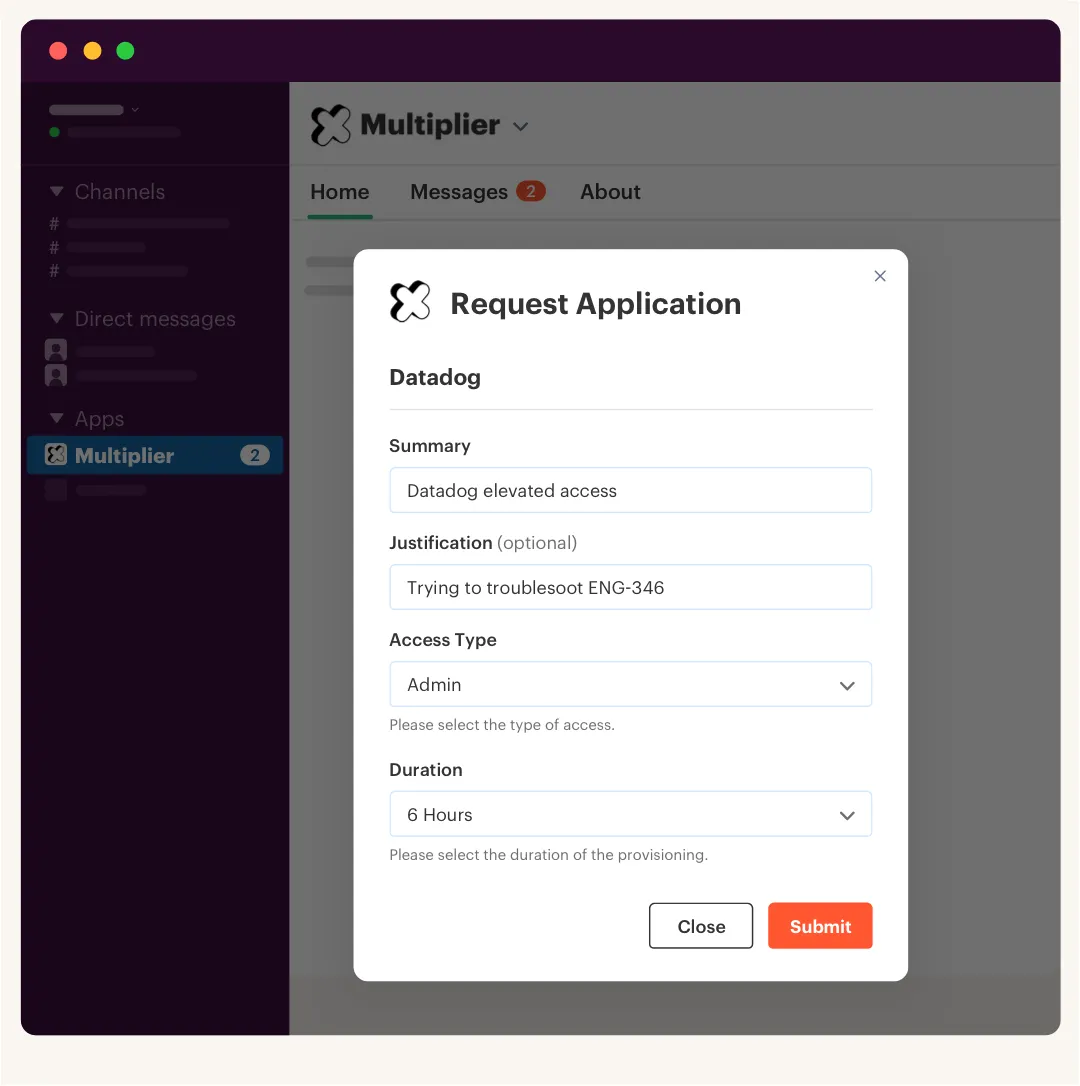
Yes, you can automate access requests through Slack using the Multiplier Slack App. Employees can type `/request` in any channel or use the app’s UI to open the application catalog. They select the desired app and role, and upon submission, a Jira ticket is automatically created. This integration helps streamline the request process, ensuring that approvals and provisioning are managed efficiently without leaving Slack.
- When should I conduct access reviews with Multiplier?
You should conduct access reviews with Multiplier regularly, ideally on a quarterly basis or whenever there are significant changes in your organization. Access reviews help ensure that users still need their assigned roles and access levels. Use the Access Review feature in Multiplier to create campaigns that allow reviewers to assess user access based on their roles, last login dates, and other relevant data. This keeps your access management in check and helps maintain compliance.
- Why does my inactive-user monitoring need to be automated?
Automating inactive-user monitoring is crucial because it reduces the manual effort involved in tracking and managing access. With Multiplier's Auto Reclaim feature, you can automatically identify inactive users based on real-time login data and reclaim licenses without relying on spreadsheets. This not only saves time but also minimizes the risk of human error and ensures that your access management processes are efficient and compliant.
Frequently Asked Questions
How do I set up inactivity thresholds in Multiplier?
To set up inactivity thresholds in Multiplier, follow these steps: 1) Access the Auto Reclaim feature in your Multiplier dashboard. 2) Define the inactivity threshold, such as 30 days without a login. 3) Set a grace period to notify users before revoking access. This allows users time to log in if they still need the application. 4) Specify any group exclusions for users who should retain access regardless of inactivity. Once configured, Multiplier will automatically monitor login activity and take action based on your settings.
What if a user logs in during the grace period?
If a user logs in during the grace period you've set in Multiplier, the automatic revocation process will stop. The user will retain their access, and you won’t need to take any further action. Just ensure that your grace period is clearly communicated to users so they know what to expect. This approach helps reduce unnecessary access removals and keeps your team informed.
Can I automate access requests through Slack?
Yes, you can automate access requests through Slack using the Multiplier Slack App. Employees can type `/request` in any channel or use the app’s UI to open the application catalog. They select the desired app and role, and upon submission, a Jira ticket is automatically created. This integration helps streamline the request process, ensuring that approvals and provisioning are managed efficiently without leaving Slack.
When should I conduct access reviews with Multiplier?
You should conduct access reviews with Multiplier regularly, ideally on a quarterly basis or whenever there are significant changes in your organization. Access reviews help ensure that users still need their assigned roles and access levels. Use the Access Review feature in Multiplier to create campaigns that allow reviewers to assess user access based on their roles, last login dates, and other relevant data. This keeps your access management in check and helps maintain compliance.
Why does my inactive-user monitoring need to be automated?
Automating inactive-user monitoring is crucial because it reduces the manual effort involved in tracking and managing access. With Multiplier's Auto Reclaim feature, you can automatically identify inactive users based on real-time login data and reclaim licenses without relying on spreadsheets. This not only saves time but also minimizes the risk of human error and ensures that your access management processes are efficient and compliant.


