

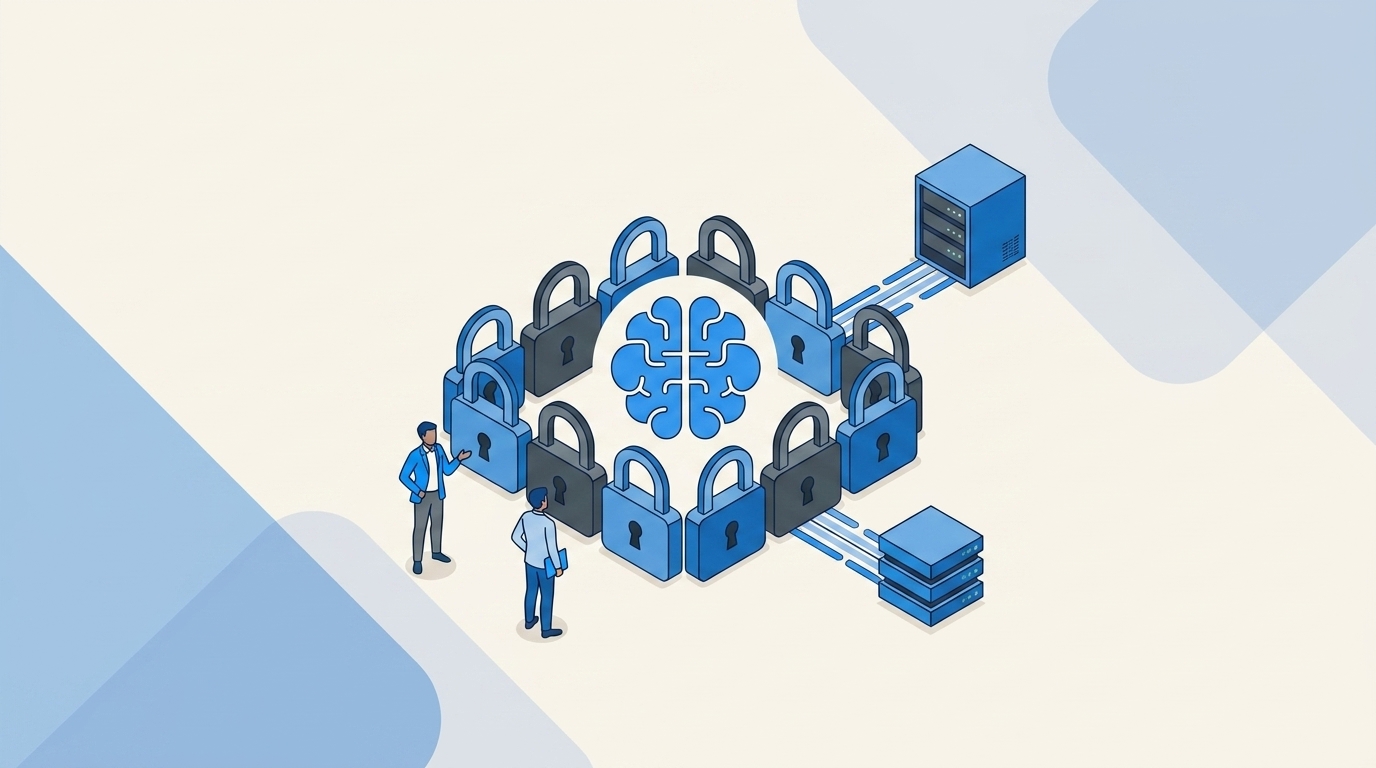
An engineer asks for 24 hours of admin access to an AI workspace. The request gets approved, the group assignment gets done, and three months later the access is still there. Your least privilege for AI policy didn't fail in the policy document. It failed at the expiry step.
The instinct is to write a tighter policy. More approval rules. More detail about who should access which models and data. But policy without automated enforcement creates paperwork, not least privilege. If access doesn't expire automatically, someone has to remember to remove it. And people forget.
Key Takeaways:
- Map every AI role to an identity provider group before automating access.
- Make elevated AI permissions time-bound, with automatic revocation at expiry.
- Keep requests and approval evidence in Jira, even when decisions happen in Slack.
- Separate human access workflows from service accounts and API credentials.
- Start with one AI application and one reversible role, then expand.
Why AI Access Policies Fail Without Enforcement
AI access policies fail when the grant, expiry, and evidence depend on different systems. A policy can say "temporary access only," but the Jira ticket, Slack approval, and identity provider change still need to execute that rule. If one handoff remains manual, standing access becomes the default.

AI permissions multiply faster than policy updates
Four access surfaces usually show up the moment a company starts adopting AI tools. Employees need basic app access, builders need model or workspace roles, and administrators need elevated control. Some users also need access to connected company data. Each surface creates different risk, but most companies push every request through the same generic ticket.

A product engineer requests temporary admin access for a model test at 2pm on a Tuesday. Their manager approves in Slack. IT adds them to an Okta group, comments on the Jira issue, then closes the ticket. The test ends Friday. Nobody removes the group membership because the closed ticket looks finished, even though the actual access change isn't. Three months later, that engineer still has admin rights nobody remembers granting.
That grant-and-revoke path is easier to understand as a real workflow than as another policy diagram, so walk through the Jira-native version before you rewrite the access standard.
Standing access is an operations problem
Policy teams tend to obsess over who may receive access. The overlooked question is how that access ends. If every removal depends on an IT admin reopening a ticket, checking the original request, finding the correct group, and removing the user, revocation will always trail behind provisioning.
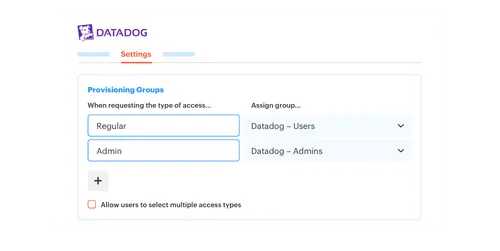
A fintech company ran into exactly that pattern after adding 387 employees in eight months. Hundreds of routine requests arrived through Slack, email, and Jira, while IT chased approvers and manually assigned Okta groups. Once request intake, approval, and provisioning were connected, the company reduced IT workload from access requests by 80%. The big shift wasn't a stricter policy. It was removing human memory from the execution path.
The ITSM and identity split creates the gap
Dedicated IGA portals can make sense for complex enterprises with broad governance programs. That's a fair reason they exist. The trouble starts when employees still request access in Jira, managers still approve in Slack, and IT still performs the change somewhere else. Every handoff loses context.
Think of a policy document as source code sitting in a repository, and the live group memberships as runtime. If runtime doesn't enforce expiry, beautifully written code doesn't change who can touch the system. That's why policy-heavy least privilege for AI often looks mature during an audit review while the real access stays broad. The audit checks the source. The attacker exploits the runtime.
The fix is to design the access path backwards from revocation.
How to Enforce Least Privilege for AI Access
Least privilege for AI works when every human access path has a defined role, approver, duration, provisioning method, and revocation event. Start with the identity provider as the enforcement point, then make Jira the record of why the change happened. The policy becomes executable instead of aspirational.
Audit the access path before changing policy
Can you trace one AI access request from submission to removal? Pick a real role, preferably something elevated but reversible, then follow every action. Look at the Jira status, the approval, the identity provider group, and the expiry mechanism. Don't review the policy first. Review what actually happened.
You're looking for gaps between systems. Maybe the approval happened in Slack but wasn't captured in Jira. Maybe the ticket closed before the group assignment finished. Maybe temporary access had a requested end date, but no system used that date. If you can't answer at least four of the five questions below, the role isn't ready for automated approval.
- Who can request the role?
- Who approves it, based on current identity data?
- Which identity provider group grants the access?
- What event removes the user from that group?
- Where is the grant and removal evidence recorded?
Classify AI access by impact and duration
Low-risk app membership shouldn't follow the same path as workspace administration. Treating both requests equally creates one of two bad outcomes. Either routine access waits behind a long approval chain, or elevated access gets a loose approval because people are tired of waiting.
I'd classify roles using two questions: what can the user change, and how easily can that change be reversed? Duration comes next. A viewer role used every day may stay active until a role change or access review. An admin role needed for one incident should expire in hours, not at the end of the quarter.
A practical starting policy looks like this:
- Standard user access: Use a defined role and normal owner or manager approval.
- Elevated access: Default to an 8-hour or 24-hour window when the work is short-lived.
- Sensitive administration: Use the shortest workable window, with explicit approval from the application owner.
- Unmapped access: Keep it manual until provisioning and revocation can be tied to a reliable system.
Make expiry part of the grant
Time-bound access only works when the expiry is created at the same moment as the grant. Adding an end date to a ticket isn't enough. The identity system needs a timer or workflow that removes the user from the mapped group without waiting for another ticket.
Before, the admin approves access, assigns a group, and creates a reminder for Friday. After, approval triggers the group assignment and starts the expiry window automatically. Friday arrives, the membership is removed, and the original ticket records the change. Nobody has to reconstruct what happened.
The full path should be simple:
- The requester selects an application, role, and duration.
- The correct owner or manager approves the request.
- The identity provider adds the user to the mapped group.
- The expiry event removes the membership and records the outcome.
If you want to compare that sequence against your current Jira and identity provider handoffs, review the request-to-revocation flow and mark every step that still depends on memory.
Provision through identity provider groups
Direct app changes feel faster when you have ten users. At 500 employees, they become hard to trace and even harder to reverse. Group-based provisioning gives each role a predictable enforcement point, because adding or removing one membership changes the entitlement through the identity provider.
Role mapping takes some upfront work. That's the honest downside. Someone has to define what "AI Workspace Admin" means, connect it to the right Okta, Entra, or Google Workspace group, and confirm that the downstream app respects the group. Still, you only solve that mapping once instead of asking every IT admin to interpret the request from scratch.
Use this order:
- Define the approved role in plain language.
- Map the role to one or more identity provider groups.
- Trigger the group change from an approved Jira status.
- Test both provisioning and removal before allowing automatic approval.
- Keep direct or non-SSO grants outside the automated path.
That last point matters. If access was granted manually inside an app, removing an identity provider group may not remove it. Don't claim automatic revocation where the technical path can't enforce it.
Put approval where people respond
Slack is often the fastest place to get a decision. Jira is usually the stronger place to retain the record. You don't need to choose between them. Let the approver act in chat, then write the decision back to the ticket that initiated the request.
Speed alone isn't governance. A Slack message saying "looks good" becomes weak evidence if nobody can connect it to the requester, role, duration, and resulting group change. The approval action needs to move the Jira workflow forward, which then triggers the identity provider action. One record. Much easier.
Keep the approval logic narrow:
- Route routine roles to the requester's manager or named app owner.
- Reserve extra approval layers for higher-impact access.
- Capture approve or deny decisions on the originating Jira issue.
- Trigger provisioning only after the configured approval status is reached.
If a low-risk request needs three approvers, the rule probably needs work. Automating a bad approval chain only makes the queue move consistently slowly.
Review exceptions instead of every grant
Automation changes what access reviews should focus on. When standard grants use mapped groups and elevated access expires automatically, reviewers don't need to inspect every routine request with equal intensity. They can focus on standing roles, failed revocations, inactive users, and access that sits outside the normal group path.
An AI company used that operating model while growing from 100 to more than 400 employees. A four-person IT Ops team supported over 420 employees, processed more than 3,800 access requests in one year, and fully automated 75% of them. The interesting part isn't the request count. It's that automation gave the team time to inspect the exceptions instead of manually fulfilling the normal cases.
Human access is only one side of AI governance. Service accounts, workload identities, and API keys need separate controls because an employee app catalog won't govern them. That limitation is real. Keep machine credentials in the system designed for secrets and workload identity, then use the human access workflow for employees requesting AI applications or roles.
Once those rules are clear, the remaining question is whether your Jira and identity stack can execute them without human cleanup.
How Multiplier Automates Time-Bound AI Access
Multiplier turns the request, approval, identity provider change, expiry, and Jira record into one connected workflow. Employees start in a Jira Service Management application catalog or Slack. Approved requests update mapped groups in Okta, Entra ID, or Google Workspace, while time-based roles are removed automatically when their approved window ends.
Jira requests trigger identity provider changes
The application catalog gives employees one place to browse approved applications and choose a defined role. Each role maps to one or more identity provider groups, so IT doesn't have to interpret free-form requests. Slack can mirror the request experience, and approvers can act from a direct message while Jira remains the system of record.

With Multiplier, an approved Jira status triggers the identity provider group change. Success or failure is written back to the issue, giving IT a direct link between the request and the action. Provisioning still depends on the identity provider path. It doesn't directly automate access inside every non-SCIM application, which is why unmapped grants should remain manual.
The core workflow covers:
- Application Catalog: Approved apps and roles appear in Jira Service Management.
- Approval Workflows: Managers, app owners, or named users approve in Jira or Slack.
- Group-Based Provisioning: Approved requests add users to mapped identity provider groups.
Expiry removes access without another ticket
Multiplier's time-based access makes duration part of the request. A user can select a window such as 1, 6, or 24 hours. After approval, the user is added to the mapped identity provider group, the timer begins, and the membership is removed when the window expires.
Every stage ties back to the Jira issue, including the request, approval, grant, and revocation. The closed-ticket problem from earlier goes away because expiry isn't a follow-up task sitting in somebody's calendar. Automatic removal does require group-based provisioning, so manual or non-SSO grants can't be treated the same way.
Start with one AI application, one elevated role, and one expiry window. If removing human memory from that path is the immediate goal, Get started with Multiplier and map the first role to your identity provider.
Making Least Privilege for AI Operational
Least privilege for AI won't come from a longer policy. It comes from making every grant predictable and every temporary permission expire without manual cleanup. Map roles to identity provider groups, keep approvals tied to Jira, and treat duration as part of the original request.
Start small. Pick one AI tool with a clear admin role and a reversible group assignment. Once the grant and revocation work every time, expand the same model across the rest of your approved AI applications.
Frequently asked questions
- How do I set up time-based access in Multiplier?
To set up time-based access with Multiplier, follow these steps: 1) When submitting an access request through the Application Catalog in Jira Service Management or Slack, choose the application and role you need. 2) Select a duration for access, such as 1, 6, or 24 hours. 3) After approval, Multiplier will automatically provision access and start a timer for the selected duration. Once the time expires, your access will be revoked automatically, ensuring you only have access when you need it.
- What if I need to extend my access duration?
If you need to extend your access duration in Multiplier, you can typically do so without re-approval if your previous request was already approved. Just submit a new request for the same application and role, and choose a longer duration. Multiplier will automatically apply the new timeframe, reducing friction during urgent tasks while ensuring compliance with your organization's access policies.
- Can I track access requests in Multiplier?
Yes, you can track all access requests in Multiplier through Jira. Each request creates a Jira ticket that logs the entire process, including approvals and provisioning actions. This means you can easily review the status of your request, see who approved it, and have a complete record of changes made, which is useful for audits and compliance checks.
- When should I use the Application Catalog for access requests?
You should use the Application Catalog in Multiplier whenever you need access to approved applications. This feature streamlines the request process by allowing you to browse available applications, select roles, and submit requests all in one place. It's especially useful for new hires or when you're unsure of the correct application to request, as it provides a clear, visual interface to guide you.
- Why does Multiplier require a defined role for access requests?
Multiplier requires a defined role for access requests to ensure that permissions are granted based on specific job functions and responsibilities. This helps maintain security by preventing overprovisioning and ensuring that users only have access to the tools they need. By mapping roles to identity provider groups, Multiplier can automate provisioning and revocation, making access management more efficient and secure.
Frequently Asked Questions
How do I set up time-based access in Multiplier?
To set up time-based access with Multiplier, follow these steps: 1) When submitting an access request through the Application Catalog in Jira Service Management or Slack, choose the application and role you need. 2) Select a duration for access, such as 1, 6, or 24 hours. 3) After approval, Multiplier will automatically provision access and start a timer for the selected duration. Once the time expires, your access will be revoked automatically, ensuring you only have access when you need it.
What if I need to extend my access duration?
If you need to extend your access duration in Multiplier, you can typically do so without re-approval if your previous request was already approved. Just submit a new request for the same application and role, and choose a longer duration. Multiplier will automatically apply the new timeframe, reducing friction during urgent tasks while ensuring compliance with your organization's access policies.
Can I track access requests in Multiplier?
Yes, you can track all access requests in Multiplier through Jira. Each request creates a Jira ticket that logs the entire process, including approvals and provisioning actions. This means you can easily review the status of your request, see who approved it, and have a complete record of changes made, which is useful for audits and compliance checks.
When should I use the Application Catalog for access requests?
You should use the Application Catalog in Multiplier whenever you need access to approved applications. This feature streamlines the request process by allowing you to browse available applications, select roles, and submit requests all in one place. It's especially useful for new hires or when you're unsure of the correct application to request, as it provides a clear, visual interface to guide you.
Why does Multiplier require a defined role for access requests?
Multiplier requires a defined role for access requests to ensure that permissions are granted based on specific job functions and responsibilities. This helps maintain security by preventing overprovisioning and ensuring that users only have access to the tools they need. By mapping roles to identity provider groups, Multiplier can automate provisioning and revocation, making access management more efficient and secure.


