

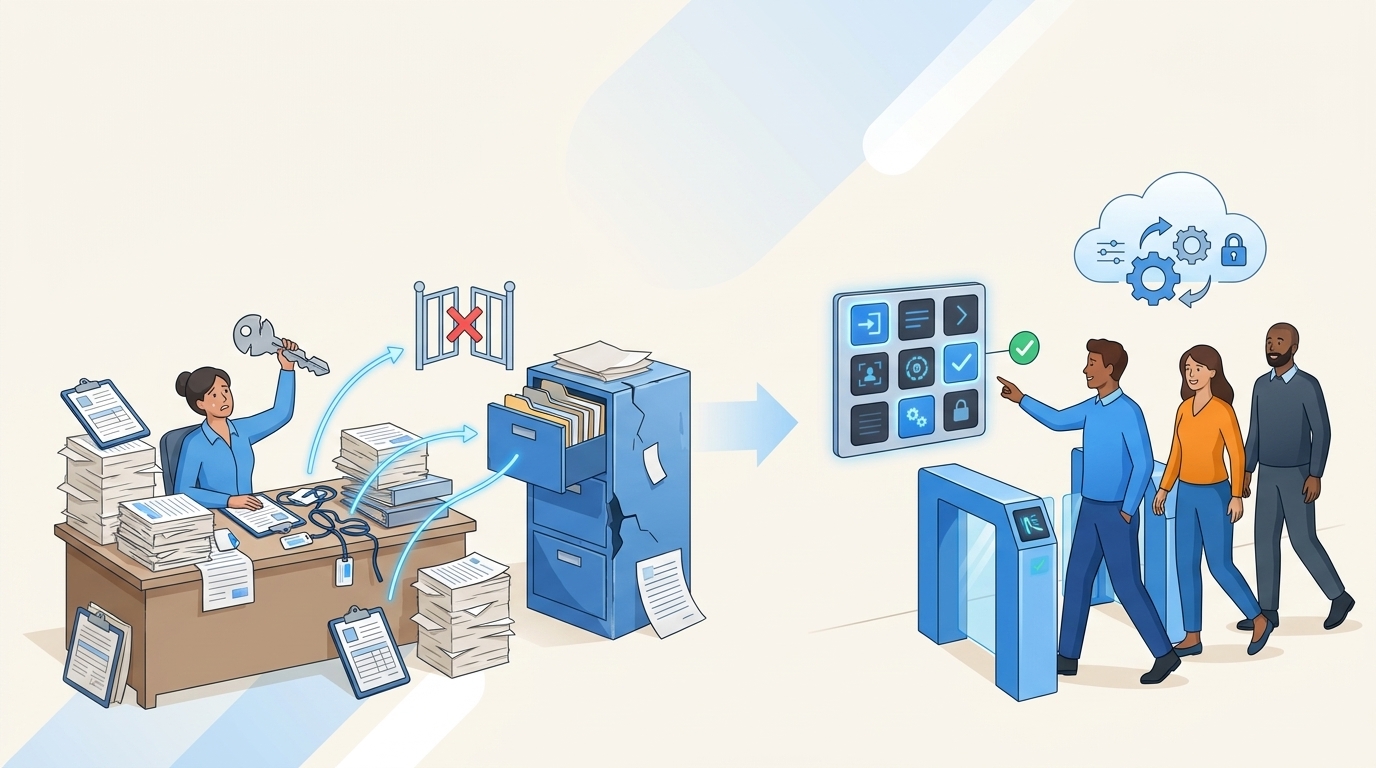
A 10-minute access request is rarely a 10-minute request once you count the approval chase, the identity provider update, and the audit cleanup later. The biggest challenges of manual access usually don't show up in the ticket queue first, they show up 90 days later when someone asks why an employee still has admin access.
I've seen this pattern in a lot of fast-growing teams. Everyone starts with a reasonable process. Someone asks in Slack. IT opens a Jira ticket. A manager approves. Someone updates Okta or Entra. Fine at 50 employees. Pretty shaky at 500. A mess at 1,000.
The mistake is treating manual access as an IT workload problem. It's actually a least privilege problem, an audit problem, and a trust problem — all wrapped in a request queue that looks harmless. If you want to see where that breaks in your own setup, explore Multiplier on the Atlassian Marketplace.
Key Takeaways:
- Manual access breaks because approvals, provisioning, revocation, and audit evidence happen in different places.
- The real risk isn't slow access. It's standing privilege that survives long after the work is done.
- Access requests should map to identity provider groups before automation starts.
- Time-bound access should be the default for elevated permissions, not an exception.
- Jira should be the audit trail by design, not a place where screenshots get pasted later.
- The cleanest access process starts with controlled intake, then approval, then automated provisioning and expiry.
Why Manual Access Breaks Least Privilege
Manual access breaks least privilege because the request and the actual entitlement drift apart. Jira may show approval, Slack may show context, and the identity provider shows the real access. When those records don't stay connected, privileges stick around longer than intended and audits become a reconstruction exercise.
The Ticket Queue Is Not the System of Record
A ticket queue feels like control because every request has a place to land. That's the trap. If the Jira issue says "approved" but the actual access lives in Okta, Entra, or Google Workspace, the truth is in the identity provider. Not the ticket. The ticket is only useful if it drives the change and records the change back.

Picture an IT admin at 4:47 PM on a Thursday. A product manager needs access to a customer data tool for a launch review. Approval comes in Slack, the Jira ticket gets updated, someone manually adds the user to the right group in Okta. Two weeks later, nobody remembers whether the access was temporary, whether the launch review ended, or whether the user still needs it. That's how manual access turns into standing privilege.
A good test: pick 20 closed access tickets from last quarter and check whether the identity provider still matches the approved request. If more than 2 are wrong, you don't have an access request problem. You have an entitlement drift problem.
Standing Privilege Grows One Exception at a Time
Standing privilege rarely appears because someone made one terrible decision. It grows through small exceptions that feel practical in the moment. A developer needs production access for 24 hours, but nobody sets an expiry. A finance user needs admin rights for month-end close, then keeps them because it's easier than asking again. A manager approves access during onboarding, then the employee changes roles and the old access stays behind.
One fintech team hit this exact wall after rapid growth and acquisitions. They had long-lived privileged access sitting around because speed mattered and cleanup was easy to postpone. After they moved to time-bound access, they reduced privileged access by 85% and had 1,300+ access requests automatically revoked after the approved window closed. That number matters because revocation is where manual processes usually fail.
Any access that creates material risk should expire by default: admin roles, production systems, financial tools, customer data, security tools, databases. If the access would make you nervous in an audit, it shouldn't be permanent unless someone can defend it every quarter.
Audit Evidence Gets Rebuilt After the Fact
Audit pain usually comes from evidence being created after the work, not during it. The request happened in Jira, the approval happened in Slack, the provisioning happened in the identity provider, and the certification happened in a spreadsheet. Now someone has to stitch it together. Screenshots. CSVs. Comments. A little archaeology project.
That's exhausting because it turns normal work into audit prep. I've watched teams lose days to this — not because they had bad people, but because their system was designed to scatter proof across tools. The NIST SP 800-53 access control guidance is pretty clear that access control depends on authorization, account management, and review. The hard part isn't knowing the control. The hard part is proving the control happened.
If audit evidence has to be rebuilt, the process is already broken. The better question is: what would access look like if every approval, grant, expiry, and revocation wrote evidence as a byproduct?
How to Replace Manual Access With Controlled Automation
Replacing manual access starts with separating request volume from access risk. Low-risk, repeatable requests should become structured and automatic after approval. High-risk requests should get tighter routing, shorter windows, and cleaner evidence — so least privilege becomes the default behavior instead of a quarterly cleanup project.
Diagnose Which Requests Deserve Automation First
Start by looking at the last 100 access requests, not the whole universe of access. Trying to map everything at once is how these projects stall. Sort requests by app, role, requester department, approval path, and whether the access should expire. You'll see patterns pretty fast. The point isn't to create a giant governance program. The point is to find the 20% of requests causing 80% of the manual work.
Ask five questions before automating any request path: Does the same request happen at least 10 times per month? Does the approver follow a predictable rule? Can the requested role map to one or more identity provider groups? Should the access expire after a fixed window? Would an auditor ask who approved it and when it was removed? If you answer yes to at least 4 of those, automate that path before touching the edge cases.
A quick sorting method:
- Start with volume: automate requests that happen 10+ times per month.
- Check role clarity: skip apps where nobody agrees what Viewer, Editor, or Admin means.
- Flag risky access: prioritize anything tied to production, customer data, finance, or security.
- Add expiry rules: if access is only needed for a task, make the request time-bound.
- Leave messy exceptions manual: weird one-off access can stay human-reviewed until the pattern repeats.
Some teams prefer to automate the easiest app first — it builds confidence. I'd still rather start where request volume and risk overlap, because that's where manual access costs you twice: once in IT time, and again in standing privilege.
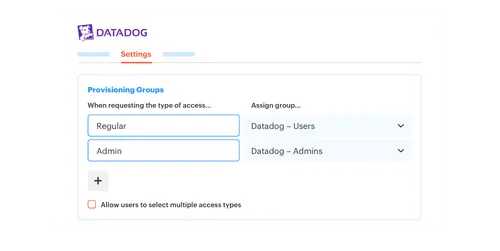
Map Each Role to an Identity Provider Group
Automation only works when roles have a clean destination. If someone requests "Figma Editor," there should be a known group in Okta, Entra, or Google Workspace that grants exactly that entitlement. If IT still has to interpret the request after approval, you haven't automated provisioning. You've just moved the manual decision to a later step.
The shift is straightforward. Before: someone asks for access, IT figures out which group applies, then manually adds the user. After: the request form already knows the app, the role, the approver, and the mapped group. Approval triggers the group change. The identity provider remains the place where access is enforced, which matters because SaaS apps often inherit access through SAML or SCIM from those groups.
Don't automate a role until it maps to a group with at least 95% confidence. If the role needs custom interpretation more than 1 out of 20 times, keep it manual or split the role into clearer options. This sounds boring. It's not. Role mapping is the hinge the whole access door swings on.
The mapping checklist:
- App: the sanctioned application someone can request.
- Role: the level of access — Viewer, Editor, Admin, or Contractor.
- Group: the identity provider group that grants that role.
- Approver: the manager, app owner, or specific person who can approve.
- Expiry rule: whether the access is permanent, time-bound, or review-required.
The exception is non-SSO tools. You can still track request and approval in the same place, but automatic removal won't work unless access is tied to identity provider group membership. Better to be upfront about that than pretend all access can be auto-revoked.
Put Expiry on Access Before Approval Happens
Expiry should be chosen at request time, not remembered later. If a requester selects 1 hour, 6 hours, 24 hours, or 7 days before the ticket is approved, the system has a clear instruction: grant access when approved, remove it when the window ends. No calendar reminder. No "can someone clean this up?" message two weeks later.
It's a lot like borrowing a keycard for a building. You wouldn't hand someone a badge for one meeting and hope they remember to return it. You'd give them a badge that stops working at 5 PM. Access should work the same way. The control isn't the conversation about whether they still need it. The control is the expiry built into the grant.
Default durations by risk:
- 1 to 6 hours for production, admin consoles, databases, and break-glass access.
- 24 hours for short operational tasks, vendor support, or incident cleanup.
- 7 to 30 days for temporary projects with a named end date.
- Quarterly review for ongoing business access that can't reasonably expire daily.
There's a real downside worth naming: if you make every request too short, people will hate the process and work around it. The goal isn't maximum friction. The goal is matching the access window to the work. If someone needs admin access every day to do their job, don't force hourly requests — redesign the role, document the business need, and review it more often.
Route Decisions to Owners Who Can Actually Say Yes
Approval workflows fail when the approver is symbolic. A manager may know the employee needs a tool, but not whether Admin is appropriate. An app owner may understand the role, but not whether the employee should have access based on job function. Security may understand the risk, but not the business urgency. Manual access gets slow because every request bounces between people with partial context.
Route by decision type. Low-risk app access can go to a manager. Elevated roles should go to the app owner or system owner. Security-sensitive access may need a specific reviewer or a stricter workflow. If the request has to be approved by 3 people every time, look at the last 50 approvals. If fewer than 5% were denied or changed, you probably have too many approvers.
A strong routing rule looks like this:
- Standard role, low-risk app: manager approval or auto-approval.
- Elevated role: app owner approval.
- Privileged system: app owner plus security review.
- Temporary access: approver sees duration before deciding.
- Repeat approved extension: allow extension without restarting the whole chain.
One AI company grew from 100 to 400+ employees in two years and had IT requests living in Slack and Notion. Notifications got missed. People chased approvals. A four-person IT Ops team can't scale that way without burning out. Once requests, approvals, and provisioning moved into a structured flow, 75% of access requests became fully automated. That's the difference between a process that depends on memory and one that depends on rules.
If your approval path still depends on someone knowing who to ask, it's not a workflow. It's folklore. Want to see a Jira-native version of the process? See Multiplier on the Atlassian Marketplace.
Treat Jira as the Evidence Trail, Not a Reminder
Jira is already where a lot of IT work starts, so it should also be where the evidence lands. Using Jira as a reminder system while the real work happens somewhere else is the mistake. A ticket saying "done" isn't enough. The record should show who requested access, who approved it, what group changed, when it changed, whether it failed, and when access ended.
Think of it like a flight recorder. Nobody wants to reconstruct a flight from text messages, calendar invites, and a pilot's memory. You want one record that shows the sequence of events. Access should have the same kind of trail: request, approval, grant, expiry, revocation, review — all connected.
Use this audit test before you trust the process: can a new IT manager answer these 6 questions from one issue without asking around?
- Who requested access?
- Which app and role did they request?
- Who approved or denied it?
- Which identity provider group changed?
- When was access granted?
- When was access removed or scheduled for review?
If the answer is no, audit prep will be manual. Maybe not today, maybe not this quarter — but eventually someone will ask for proof, and your team will be back in screenshots and spreadsheets.
Review Access by Behavior, Not Memory
Access reviews are weak when reviewers rely on memory. A manager sees a spreadsheet with 400 users and has to decide who still needs what. They rubber-stamp because they don't have context. Or they revoke too aggressively and break someone's work.
Better reviews use behavior: last login, department, title, group membership, role, known owner. If someone hasn't logged into an app in 90 days, the reviewer should see that before making a decision. If someone changed departments 45 days ago and still has the old team's tools, that should stand out. Access review isn't a memory test. It's a decision process.
Review rules that work:
- Inactive 30 days: flag for license reclaim on high-cost tools.
- Inactive 90 days: recommend revoke unless the owner gives a reason.
- Role change in last 60 days: review old department access first.
- Privileged access: review monthly or make it time-bound instead.
- Contractors: require expiry or tighter review windows by default.
The Verizon 2024 Data Breach Investigations Report keeps showing how much identity and credential misuse matter in real incidents. Operationalize that in plain English: don't wait for a quarterly spreadsheet to find access nobody used for 6 months.
How Multiplier Automates Time-Bound Access
Multiplier automates the controlled access model by keeping intake, approval, provisioning, expiry, and evidence tied to Jira Service Management. Employees request approved apps through Jira or Slack, approvers act in the flow, and access changes execute through identity provider groups — keeping least privilege tied to the actual work record.
Provisioning Follows the Approved Jira Issue
Multiplier uses an Application Catalog inside Jira Service Management so employees can request sanctioned apps and roles from one place. Behind the scenes, each role maps to identity provider groups in Okta, Entra ID, or Google Workspace. Once the Jira issue reaches the approved status, Multiplier calls the identity provider to add the user to the mapped group and writes the result back to the ticket.

The Jira issue stops being a passive record — it becomes the control point. The request has the app, the role, the approver, and the resulting group change. Approval Workflows can route decisions to managers, app owners, or specific users, with approvals happening in JSM or Slack.
The practical shift:
- Before: request in Slack, approval in a thread, manual group update, screenshot later.
- After: request in Jira or Slack, approval tied to the issue, group change through the identity provider, evidence recorded on the ticket.
- Risk control: elevated roles can use stricter approvers and clearer access windows.
- Audit trail: success or failure comments live with the Jira issue that started the work.
Multiplier provisions through identity provider groups, not directly inside every SaaS app. That boundary matters. If the app isn't connected through SSO or group-based access, you can still track approval and evidence, but automatic revocation depends on the identity provider being able to remove the group membership.
Temporary Access Expires Without Cleanup Work
Multiplier's Time-Based Access lets requesters choose a duration — 1, 6, or 24 hours — during submission. After approval, access is provisioned through the mapped identity provider group. When the window expires, Multiplier removes the user from that group and records the revocation in Jira. No human follow-up. No cleanup queue sitting in someone's head.
That's the piece that changes least privilege from policy into practice. The old model says "only grant access people need." The better model says "grant it for the exact window they need, then remove it automatically." For privileged systems, admin roles, and sensitive data, that difference is significant — and much easier to explain to auditors because the proof is attached to the original request.
For teams trying to get out of the manual access loop, the combination is direct:
- Application Catalog standardizes intake.
- Approval Workflows route decisions to the right person.
- Automated Provisioning changes identity provider groups after approval.
- Time-Based Access removes the entitlement when the window ends.
- Slack App lets employees request and approve without leaving chat, while Jira stays the record.
Access reviews can then handle access that truly needs to remain ongoing. Reviewers see user details, groups, last login, and recommendations inside JSM, then choose Keep or Revoke. Multiplier removes users from relevant identity provider groups and creates Jira evidence for the change.
Make Access Auditable Before the Audit
The challenges of manual access don't come from one bad ticket. They come from a process where requests, approvals, provisioning, expiry, and evidence live in different places. At small scale, people compensate with memory. At growth scale, memory turns into risk.
More spreadsheets or a bigger approval chain won't fix it. Start with the repeatable access paths, map roles to identity provider groups, put expiry on risky access, and make Jira the place where the proof gets created automatically. That's how access stops being a quarterly fire drill and becomes something your team can trust every day.
Frequently Asked Questions
How do I automate access requests using Multiplier?
To automate access requests with Multiplier, start by setting up the Application Catalog in Jira Service Management (JSM). This allows employees to browse approved applications and select roles. Once they submit a request, Multiplier manages the approval workflow, notifying the appropriate approvers via JSM or Slack. After approval, Multiplier automatically provisions access by updating the identity provider groups, eliminating manual steps. This streamlines the process and ensures that all requests are documented in Jira for future audits.
What if I need to revoke access after a specific time?
If you need to revoke access after a specific time, use Multiplier's Time-Based Access feature. When submitting an access request, the requester can choose a duration (like 1, 6, or 24 hours). After approval, Multiplier automatically provisions access and sets a timer to revoke it once the time expires. This ensures that elevated access is temporary and aligns with least privilege principles, reducing the risk of standing privileges.
How do I ensure access requests are compliant with audits?
To ensure compliance with audits, use Multiplier to tie all access requests, approvals, and provisioning actions to Jira tickets. This creates a complete audit trail that includes who requested access, who approved it, and when changes were made. By automating the process, Multiplier captures evidence in real-time, reducing the need for manual documentation later. Regularly review access through Multiplier's Access Reviews to maintain compliance and identify any discrepancies.
When should I consider automating access requests?
Consider automating access requests when you notice patterns in your access requests, such as the same request happening frequently (10+ times per month). If the approval process is predictable and can be mapped to identity provider groups, it's a good candidate for automation. Using Multiplier, you can streamline these requests and reduce the manual workload on your IT team, allowing them to focus on more complex access issues.
Can I track which users have accessed specific applications?
Yes, you can track user access to specific applications through Multiplier's integration with your identity provider. This allows you to monitor which users are added to specific groups and when they access applications. By using the Application Catalog in JSM, you can also maintain a record of all requests and approvals, ensuring that you have a clear view of user access for compliance and auditing purposes.


