


30 days is long enough for privilege creep prevention to fail if access still depends on someone remembering cleanup. And honestly, that’s where a lot of IT and security teams get burned, because the risky access usually started as a totally normal request.
Someone needed admin access for a migration. Someone needed a paid SaaS seat for a project. Someone needed access to a customer dataset for 24 hours. All reasonable. Then the project ended, the ticket closed, the person moved on, and the access stayed.
That’s how privilege creep works. Not with one dramatic mistake. With 500 reasonable exceptions that never get reversed.
Key Takeaways:
- Privilege creep prevention works when access has an expiry date from the start, not when IT cleans it up later.
- Chat approvals and SaaS management reports don’t fix the root problem if they can’t enforce revocation.
- Group-based provisioning through Okta, Entra ID, or Google Workspace gives IT a cleaner way to grant and remove access.
- Login activity is one of the easiest signals for finding licenses and permissions that should be reclaimed.
- Access reviews only work when the review decision triggers the removal, not another manual task.
- The better model is request, approve, provision, expire, and document from the same workflow.
Why Privilege Creep Starts as a Workflow Problem
Privilege creep starts when access requests, approvals, provisioning, and cleanup live in different places. Jira has the ticket. Slack has the approval. Okta or Entra has the group. A spreadsheet has the audit notes. Once those pieces split, privilege creep prevention becomes a memory game, and memory is a bad control.

Access Rarely Gets Removed After the Job Is Done
The first sign of privilege creep is not usually a failed audit. It’s a boring ticket that says, “Need admin access for today.” The requester gets approved, IT adds them to the right group, the project moves forward, and everyone feels good because the business wasn’t blocked. Fair. Speed matters.
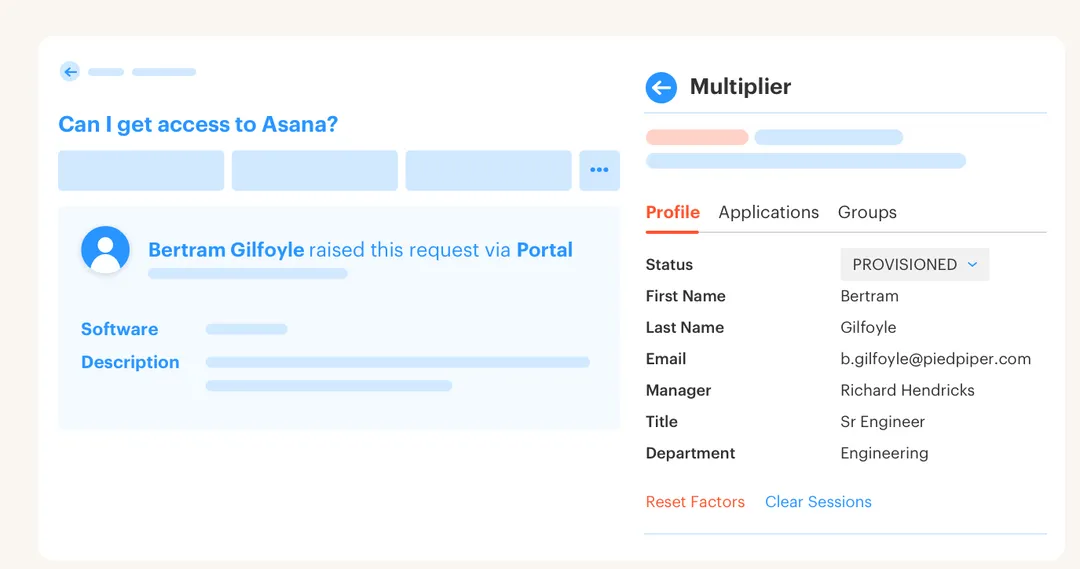
The problem shows up later. Two weeks later, nobody remembers why the person still has admin access. Three months later, the same person is in a privileged group during an access review, and the reviewer has to guess whether it’s still needed. I’ve seen this pattern a lot, and the root issue is almost never bad intent. It’s that the original request had no built-in end date.
A simple test works well here: if the access is tied to a project, incident, migration, customer escalation, or temporary role coverage, it should expire automatically. If the access is tied to someone’s core job, it can be standing access, but it should still be reviewed. That one split catches a huge amount of access drift before it turns into audit pain.
Chat Approvals Create a False Sense of Control
Slack makes approvals feel fast, which is great. But a chat approval by itself is not governance. If someone says “approved” in a thread and IT still has to manually add the user to a group, set a reminder, update the ticket, and save evidence, the approval only solved one small part of the problem.

I get why teams do it. Nobody wants to send employees to another portal. Nobody wants to slow down a sales engineer who needs access during a customer call. But chat without enforcement is like putting a sticky note on a server rack. Useful in the moment. Terrible as a long-term control.
For privilege creep prevention, ask one uncomfortable question: after approval, what happens automatically? If the answer is “someone in IT does it,” you don’t have a control yet. You have a request queue with better notifications.
If you’re trying to tighten access without adding another portal, it’s worth looking at how Jira-native access workflows work in practice: Learn more about Multiplier.
License Waste Is Usually Access Risk Wearing Finance Clothing
Unused SaaS licenses look like a finance problem first. A team buys 200 seats, 37 people stop logging in, and the CFO wants the bill cleaned up. But those unused seats are also stale access. Same problem. Different spreadsheet.
A good CFO conversation can actually improve security. When finance asks why inactive users still have paid licenses, IT gets a clean business reason to enforce reclamation. That’s the hidden connection most teams miss. Cost control and privilege creep prevention are often the same workflow.
The threshold I like is 30 days of no login for collaboration tools, 60 days for lower-risk apps, and 90 days for apps that are used less often but still matter. Not perfect. But it’s practical. If a user crosses the threshold, send a warning. If they don’t log in during the grace period, remove the access and document it.
How to Build Privilege Creep Prevention Into Daily Work
Privilege creep prevention works when revocation is part of the original access workflow. The goal is not more policy docs. The goal is a system where temporary access expires, unused licenses get reclaimed, and access review decisions actually remove permissions without creating another cleanup queue.
Find the Grants That Outlive Their Reason
Start by looking for access that has outlived its reason. Not every permission is equal, and trying to clean everything at once usually fails. I’d start with privileged groups, paid SaaS licenses, and apps tied to customer data, because those create the cleanest mix of security risk and business cost.
Ask five questions before you build any process. Does the person still log into the app? Is the access tied to their current role? Was the original request temporary? Does the app owner know why they have it? Would you feel good explaining the grant to an auditor in 60 seconds? If two answers are no, review it. If three answers are no, remove it unless the owner can justify it.
The National Institute of Standards and Technology calls least privilege a core access control principle in NIST SP 800-53, but the hard part is not agreeing with the principle. Everyone agrees with least privilege on a slide. The hard part is turning it into a weekly operating motion that doesn’t drown IT.
A practical first pass looks like this:
- Pull privileged groups from your identity provider.
- Sort users by last login and role change date.
- Flag access older than 90 days with no clear business owner.
- Separate permanent role access from temporary project access.
- Remove or time-box anything that can’t be explained.
Make Duration Part of the Request
Temporary access should ask for duration before it asks for approval. That sounds small, but it changes the whole motion. The requester has to choose from configured durations like 1 hour, 6 hours, or 24 hours, and the approver can judge the request with the expiry in mind.
Without duration, approvers are only deciding yes or no. With duration, they’re deciding risk. I’d rather approve admin access for 6 hours than reject it, force a workaround, and watch someone share credentials because the process was too slow. Not everyone likes that tradeoff, and I get it. Temporary access creates more moving parts. But standing privilege creates more exposure.
The useful part of time-bound access is not just the approval step. With Multiplier, the same workflow can provision access through your identity provider group, start the timer, and automatically remove the access when the window ends. That means the request, decision, grant, and revocation all live on the same Jira record instead of turning into manual cleanup later.
My rule is pretty simple: if access is elevated, make permanent the exception. For production systems, admin roles, sensitive datasets, finance tools, and customer data, default to time-bound access. If someone truly needs standing access, make the justification explicit and review it on a tighter cycle.
Route Approvals Based on Risk, Not Politics
Approval chains get weird fast. Someone wants the manager involved. Someone else wants the app owner involved. Security wants a say on sensitive apps. Then every request gets the same heavy process, employees complain, and IT starts bypassing the workflow just to keep things moving.
Risk-based approval is cleaner. Low-risk access can be auto-approved or manager-approved. Paid SaaS seats can go to the app owner or budget owner. Privileged roles should go to the app owner or a specified approver. The mistake is treating a Figma Viewer request and a production database admin request like they belong in the same queue.
Use a simple routing table:
- Low-risk app, standard role: manager approval or auto-approval.
- Paid app, normal role: app owner approval.
- Privileged role: app owner or specified approver.
- Temporary elevated access: app owner approval with forced expiry.
- Unknown app request: IT triage before approval.
The Verizon DBIR has repeatedly shown the role identity plays in breaches, and the 2024 Verizon Data Breach Investigations Report is a useful reminder that access decisions have real stakes. Still, the answer is not making every employee wait three days. The answer is matching the approval path to the actual risk.
Provision Through Groups, Not Human Memory
Group-based provisioning is where privilege creep prevention gets much easier. Instead of asking IT to remember which app role maps to which permission, map the requestable role to an identity provider group. When the request is approved, the user gets added to the group. When access expires or gets revoked, the user gets removed from the group.
That creates a better control loop. Jira can track the request. Slack or Jira can capture the approval. Okta, Entra ID, or Google Workspace becomes the authority for group membership. The SaaS app gets the entitlement through SSO or SCIM where supported. Everyone knows where the truth lives.
The before and after is pretty stark. Before, IT gets a ticket that says “Need Salesforce access,” asks what role, asks who approved, logs into the identity provider, finds the right group, adds the user, comments on the ticket, and hopes someone remembers cleanup. After, the employee selects Salesforce and the role from a self-service catalog, the approver clicks approve in Jira or Slack, and Multiplier executes the mapped group change through the workflow.
If your team is still doing copy and paste provisioning from tickets into your identity provider, you’re paying a hidden tax on every request. The tax shows up as delays, mistakes, stale access, and audit evidence nobody wants to rebuild later.
Use Login Activity to Reclaim Unused Access
Last login is not a perfect signal, but it’s a very useful one. Some apps have odd usage patterns. Some executives need access even if they rarely log in. Some service accounts shouldn’t be treated like humans. Fine. Exclude them. The remaining inactive users are where SaaS waste and privilege creep prevention overlap.
A 30-day inactivity threshold is a good starting point for expensive, daily-use tools. For apps that are seasonal or department-specific, use 60 or 90 days. The key is adding a grace period before removal, because you’ll catch people who were on leave, traveling, or using a different tool for a few weeks.
The workflow should be boring:
- Identify users with no login after the threshold.
- Send a warning that access will be removed.
- Give them a grace period to log in or object.
- Revoke access if they stay inactive.
- Create a ticket or record showing what happened.
Boring is good here. I don’t want license reclamation to depend on a quarterly spreadsheet party where IT, finance, and app owners debate stale exports. I want the system to watch login activity, nudge the user, remove the license if they don’t respond, and leave behind a clean record. Less drama. Better control.
If you want to see what this looks like when it’s wired into Jira and your identity provider, See how Multiplier works.
Review Access With Decisions Tied to Execution
Access reviews fail when they stop at the decision. A reviewer clicks “revoke,” then someone exports the result, creates a ticket, assigns IT, waits for the group removal, follows up, and updates the spreadsheet. That process looks compliant until you ask whether the access was actually removed.

The fix is to connect review decisions to the change itself. If the app owner says revoke, the system should remove the user from the relevant identity provider group and record the action. If nobody answers, the campaign should show the exception clearly.
I’ve sat in enough audit prep meetings to know the painful part is not the review question. It’s the evidence question. Who approved it? When did they approve it? What access changed? Was it removed? Where’s the proof? If all of that lives in separate places, the audit becomes archaeology.
A good access review should produce three things without heroic effort:
- A list of users reviewed.
- A keep or revoke decision with reviewer context.
- Proof that revocations were executed.
Privilege creep prevention gets much more reliable when reviews stop being opinion collection and start becoming enforced cleanup.
How the Platform Enforces Temporary Access
The platform should make the safer path easier than the manual path. For Jira-centered IT teams, that means access requests start in JSM or Slack, approvals stay tied to the ticket, provisioning runs through the identity provider, and expiry or revocation gets written back as evidence.
Group-Based Provisioning From Jira Requests
Multiplier uses Jira Service Management as the request record and your identity provider as the enforcement layer. Employees request approved apps from a catalog in JSM or Slack, choose the role they need, and submit the request with the right context. After approval, Multiplier adds the user to the mapped Okta, Entra ID, or Google Workspace group.
That matters because privilege creep prevention depends on clean mappings. If “Editor” maps to one group and “Admin” maps to another, IT isn’t guessing. The workflow handles the group change, and the Jira issue captures the request, approval, provisioning result, and later removal. Much cleaner than screenshots and side notes.
Time-based access is the bigger shift. A requester can choose a duration, like 1, 6, or 24 hours, and after approval the access is provisioned through the mapped identity provider group. When the window expires, Multiplier removes the group membership and records the change on the Jira issue. That’s the difference between “we approved temporary access” and “temporary access actually ended.”
License Reclamation and Reviews Inside JSM
Multiplier also connects license cleanup to identity data. Auto Reclaim uses last-login data from connected identity providers, applies inactivity thresholds and grace periods, warns inactive users, and revokes access if they still don’t log in. For teams trying to cut SaaS waste, that turns license cleanup into a repeatable control instead of a finance fire drill.
Access Reviews handle the campaign side. Reviewers see user details, groups, last login, and recommendations in JSM, then mark keep or revoke. When access is revoked for connected apps, Multiplier removes users from the relevant identity provider groups and creates Jira evidence around the change. That ties the review decision to execution, which is where a lot of manual programs fall apart.
A team that already runs access through Jira doesn’t need another portal just to prove it has governance. It needs the request, approval, provisioning, expiry, reclamation, and review workflow to share the same record. That’s the operating model Multiplier is built around, and it’s why the cleanup doesn’t have to wait for the next quarterly spreadsheet. For teams ready to move from reminders to enforcement, Get started with Multiplier.
The Operating Habit That Stops Access Drift
Privilege creep prevention is really about building a habit: every grant needs an owner, a reason, an enforcement path, and an end condition. If access is temporary, it should expire. If a license is unused, it should be reclaimed. If a reviewer says revoke, the access should actually disappear.
The old way made IT remember everything. That worked when the company was small, the app list was short, and everyone knew who owned what. Then headcount grows, SaaS spreads, audits get tighter, and suddenly the memory-based system breaks.
The better path is boring in the best way. Request in Jira or Slack. Approve based on risk. Provision through the identity provider. Expire temporary access automatically. Reclaim unused licenses with login data. Review access in the same place the changes happen.
That’s how you stop privilege creep before it becomes cleanup work.
Frequently Asked Questions
How do I set up time-based access for temporary roles?
To set up time-based access with Multiplier, start by ensuring your application is configured to allow duration selection. When an employee requests access, they can choose a time limit, like 1, 6, or 24 hours. Once approved, Multiplier automatically provisions the access and sets a timer to revoke it after the selected duration. This helps minimize privilege creep by ensuring that temporary access is automatically removed when no longer needed.
What if I need to revoke access after an audit?
If you need to revoke access after an audit, use Multiplier's Access Review feature. Create a campaign in Jira Service Management, select the applications to review, and assign reviewers. They can mark users to keep or revoke based on their access needs. When a revocation is decided, Multiplier automatically removes the user from the relevant identity provider groups and documents the change in Jira, which means all actions are tracked and auditable.
Can I automate license reclamation for inactive users?
Yes, you can automate license reclamation with Multiplier's Auto Reclaim feature. Set inactivity thresholds (like 30 days) for your applications. When a user exceeds this threshold, Multiplier sends them a warning email. If they remain inactive after the grace period, their access is automatically revoked, and a Jira ticket is created to document the action. This helps reduce unnecessary SaaS costs and keeps your access management efficient.
When should I conduct access reviews?
Access reviews should typically be conducted quarterly or whenever there are significant changes in team structure or roles. With Multiplier, you can streamline this process by creating access review campaigns in Jira. This allows you to efficiently track user access, gather feedback from reviewers, and ensure that any unnecessary permissions are revoked promptly, keeping your access management in check.
Why does my team need a unified access request system?
A unified access request system, like Multiplier integrated with Jira Service Management, helps eliminate confusion and inefficiencies. It centralizes all access requests in one place, reducing the risk of privilege creep. By using a self-service app catalog, employees can easily request access, and approvals are routed automatically, which means that all actions are documented and auditable. This leads to better governance and faster response times.


